
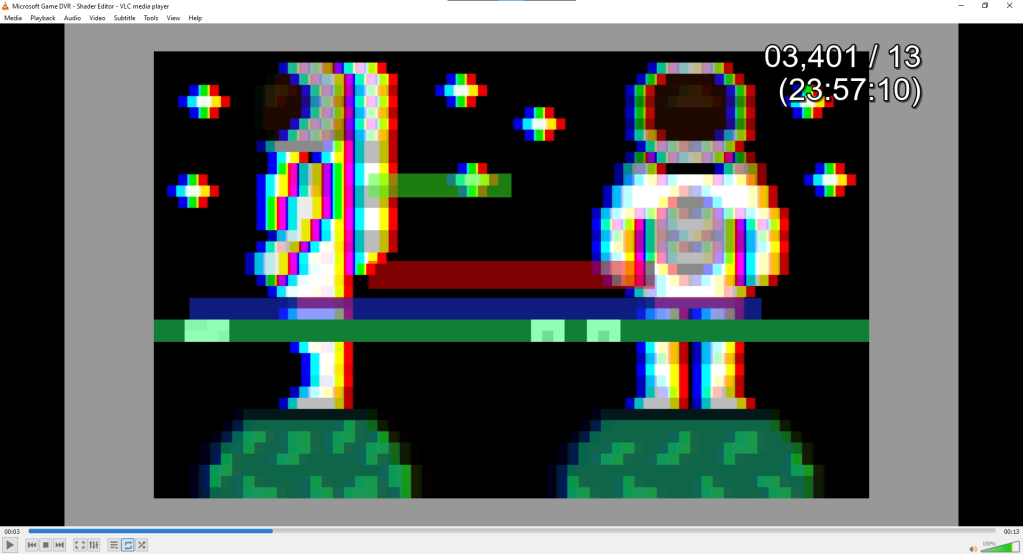
Learn how to view milliseconds or frames in VLC media player using a simple time extension.
VLC media player
VLC is a free and open source cross-platform multimedia player and framework that plays most multimedia files as well as DVDs, Audio CDs, VCDs, and various streaming protocols.
VLC: Official site – Free multimedia solutions for all OS! – VideoLAN
Time extension
Download the extension from here and unzip it somewhere.
Inside the zip file is a extensions folder and a intf folder.
From the extensions folder, copy the ‘time_ext.lua’ file.
Navigate to where VLC media player is installed on your machine.
On Windows, that might be here:
C:\Program Files\VideoLAN\VLC\luaPaste the ‘time_ext.lua’ file into this folder:
C:\Program Files\VideoLAN\VLC\lua\extensionsNext copy the ‘time_intf.lua’ file from the unzipped intf folder, and paste it into this folder:
C:\Program Files\VideoLAN\VLC\lua\intfOpen VLC
Open VLC media player. Go to view –> Time 3.2 (intf).
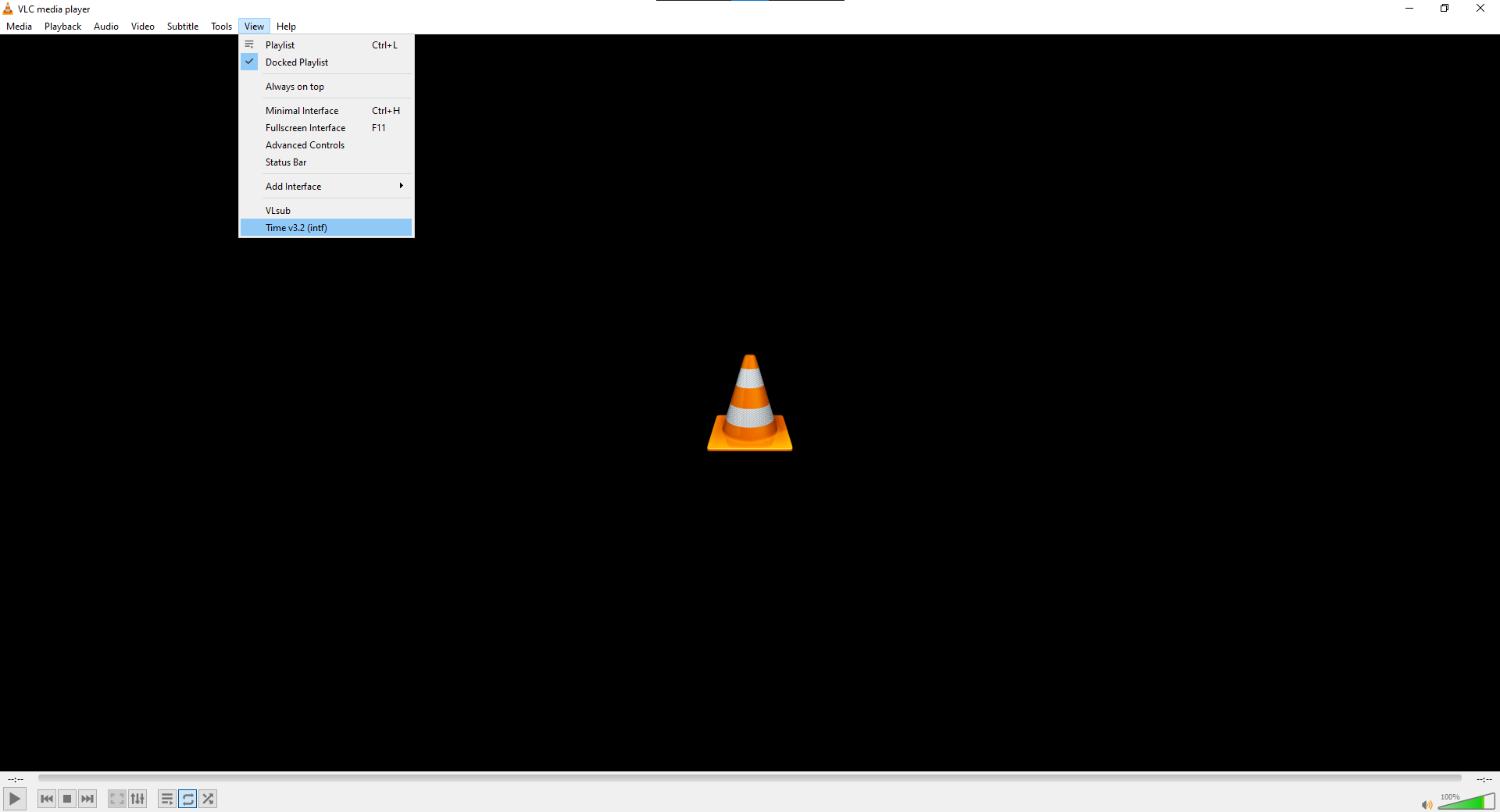
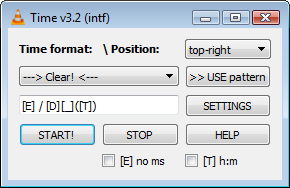
You should see this screen:
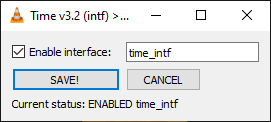
Click save to enable the extension. You will then be prompted to restart VLC media player.
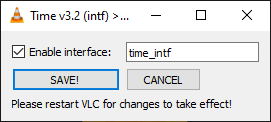
Restart VLC media player by closing it and reopening it.
Control panel
Now open a video in VLC media player.
Go to view –> Time 3.2 (intf).
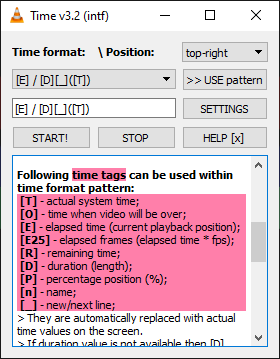
This time you should see this control panel:
If you click on HELP you can see the supported tags and what they do.
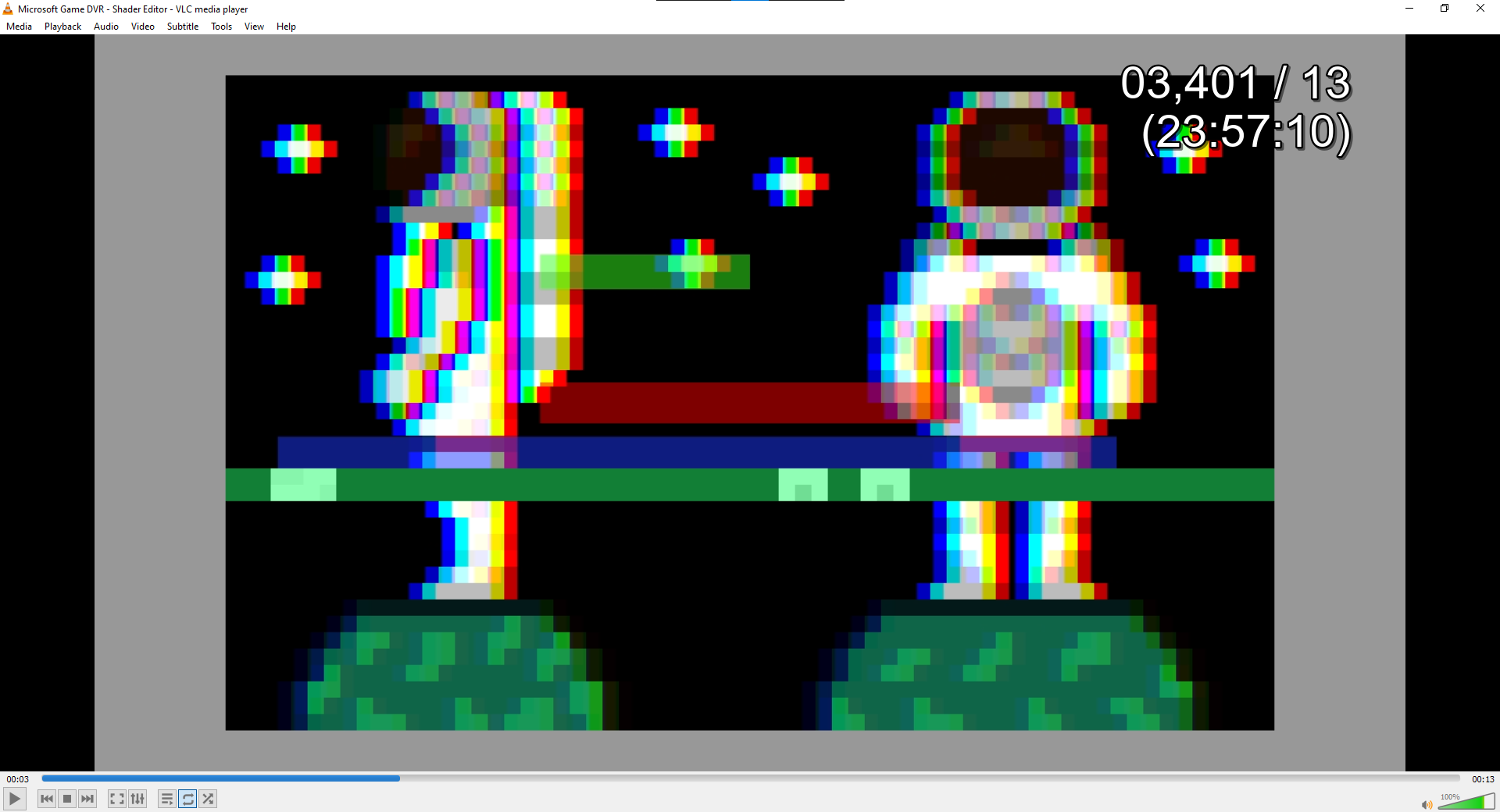
By default it shows the elapsed time in milliseconds, followed by the duration, and the current system time.
Change tag/s
You can change tags using the drop down. Afterwards you need to click >> USE pattern, then START!
Usage
Now you can see the number of elapsed milliseconds or frames using the horizontal slider. This is useful for finding the exact start and end time you need to make a shorter video, from a longer video.
You could then use your start and end time in something like ffmpeg to create a new video.
For example if I like how my video looks at 3,337 to 9,739 milliseconds. I could then convert and round the numbers to seconds like so:
ffmpeg -ss 3.3 -to 9.7 -i input.mp4 output.mp4This will create a new video using 3.3 seconds as the start time and 9.7 seconds as the end time.
For more video editing tutorials using ffmpeg, check out:
Conclusion
Thank you for reading this tutorial. Let me know in the comments section if you enjoyed it, or have any questions!
 Agate DRAGON Games
8 responses to “Viewing milliseconds in VLC media player”
Clicking on START! unfortunately does nothing, I cannot see any time at any position I set. No matter which tags I choose, the START button just does nothing visible.
Seems to be working for me. I have the latest version of VLC Media Player installed on Windows 10, and I used a MP4 file to test it. I’d say double check the instructions. If the time extension control panel comes up, then I would match the settings to the screenshot above
Everything has worked excellent! Great thanks to author!
Thank you Alex, glad to hear it works for you! 😀
This is a very handy tool, thank you for making it and sharing it with people.
I wanted to ask a question: does the millisecond count / display work with any format of video file, or just specific ones?
I have several mp4 files which I want to analyze frame-by-frame, but when I advance them in VLC using the [E] button, the millisecond and frame count display does not update with each press of the “next frame” button. Instead, the display seems to update every 7 or 8 frames (makes sense, since the video is about 30 frames per second).
When the display updates, it does so in increments of 250 milliseconds only. I wish I could get it to display the millisecond position each time I push “next frame”. Is there a setting for it that I’m missing? Ideally, each press of the “next frame” button in VLC would show the frame count incremented +1, and the exact millisecond count of that point in the video.
Also, a more general question: is there an exact way to find out the file’s frame rate? For one of the files I have, the Windows details menu for the file shows “29.97”, while the media information in VLC show a strange value, like “29.970029”. I was curious if this could be part of the reason that the frame count and milliseconds does not display more precisely.
Thanks again!
Thank you, Ash. I’m afraid I’m not the author of the tool, I just wrote a guide on how to use it. I only use MP4, I’ve not tried other formats. The [E] button also does not work for me. To find the correct time, I usually drag the slider instead. Sorry I can’t be more helpful!
I appreciate your quick reply. So it sounds like we’re both doing a similar thing, and having a similar issue. My hope was to time an object moving on video to calculate its velocity / acceleration, so I was hoping to get a more precise time displayed on the screen.
Although this tool still has its use for people, I did find an alternative which seems to show a more precise time / frame count, called “Avidemux”. It seems that they stopped developing it a few years back, but it still works and is free to download, in case you were looking for something with this functionality.
Thanks for your helpfulness! God bless you.
Thank you for sharing this! It’s always good to know about other options.