
Category: Art
-
Blurred stripe background in Aseprite

Learn how to create a blurred stripe background in Aseprite. Use it to make your digital art scene backgrounds more interesting.
-
Fast lava tile in Aseprite
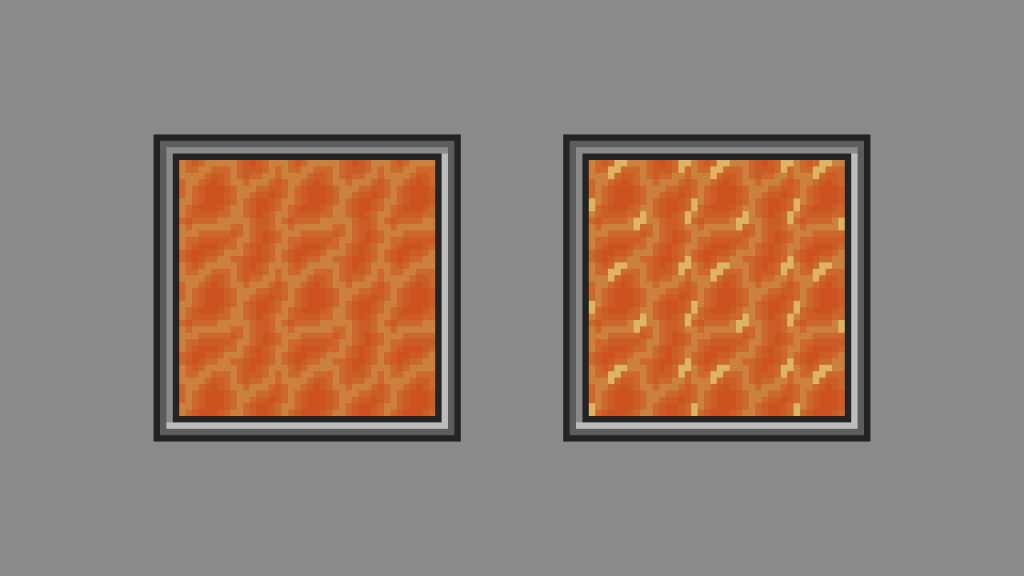
Learn how to create a seamless lava tile quickly in Aseprite. Use it to heat up your digital art scene or video game.
-
Creating monochrome pixel art in Aseprite
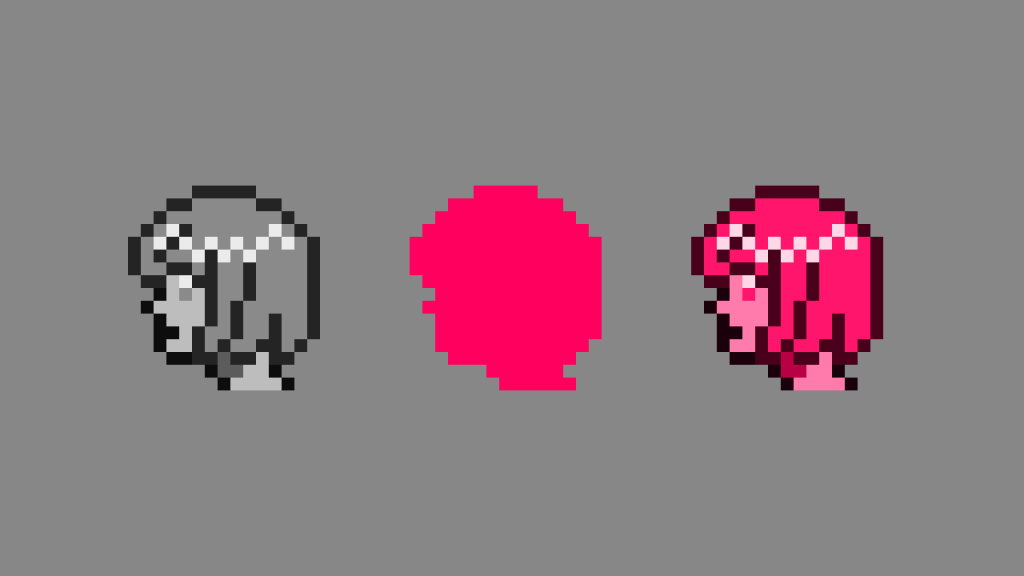
This tutorial will show you a fun way of creating monochrome pixel art in Aseprite by using a greyscale image and blend modes.
-
Creating a metal texture in GIMP
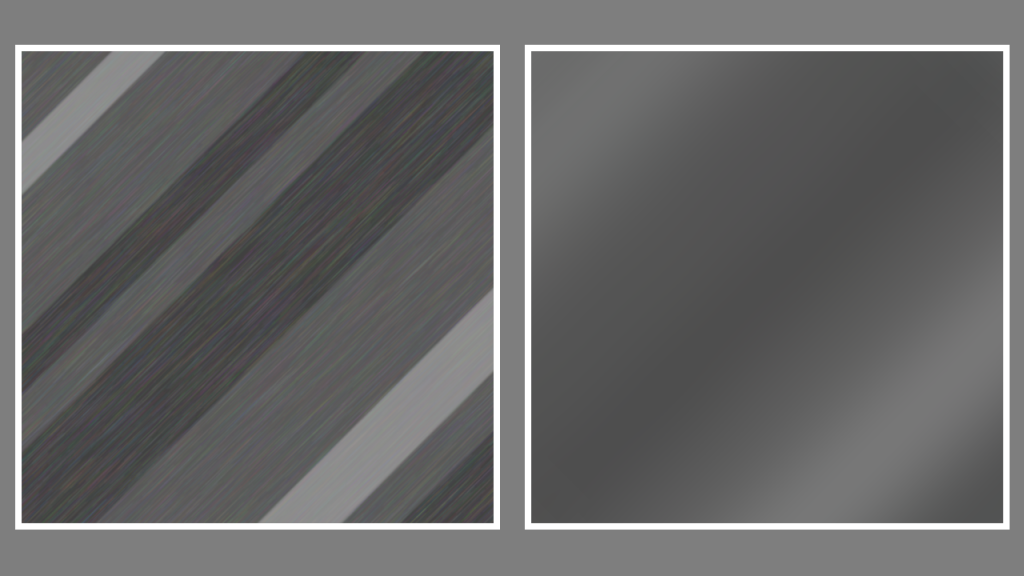
Learn how to create a metal texture in the GIMP image editor by drawing lines of varying sizes. Use noise, linear motion blur, gaussian blur and plasma to create a nice metal texture.
-
Creating a wood texture in GIMP
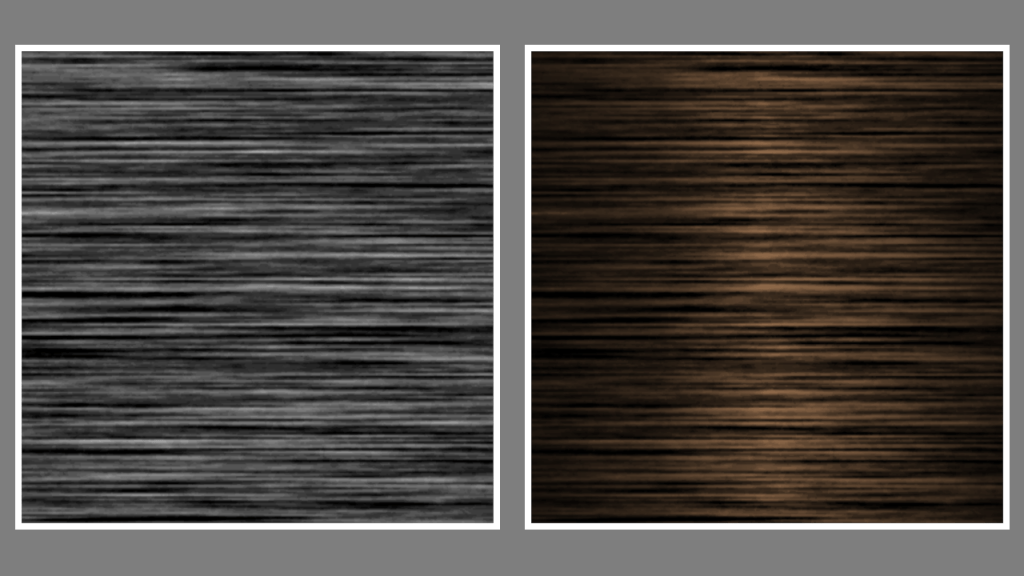
Learn how to create a wood texture in the GIMP image editor using noise, motion blur, levels and gradients. You can use the wood to texture 3D models for video games and other types of computer-generated imagery.
-
Creating a drop shadow effect in GIMP
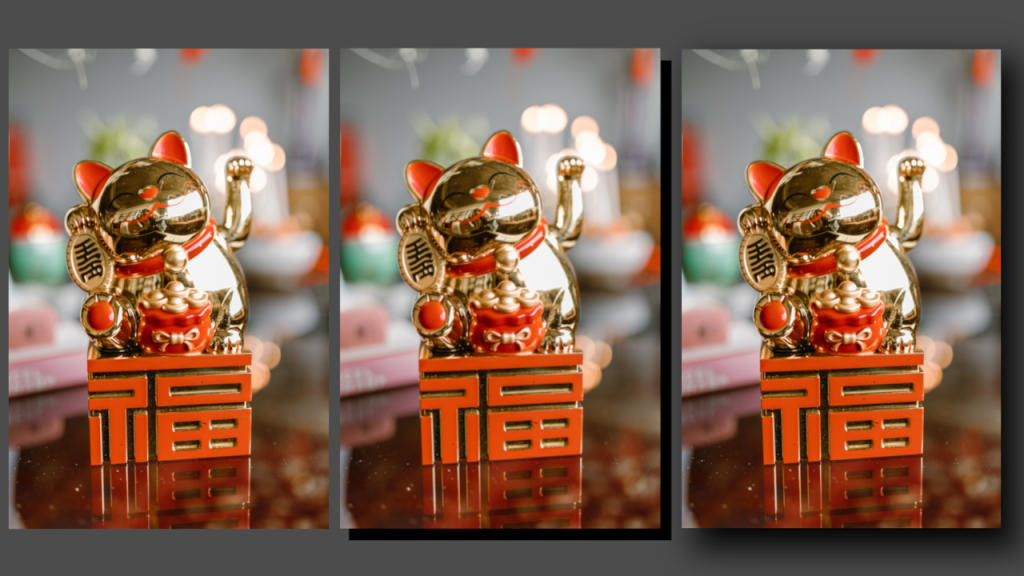
Learn how to apply a drop shadow effect to any image in the GIMP image editor by creating a shadow layer and applying gaussian blur. The process is similar for other image editors like Adobe Photoshop.
-
Happy year of the dragon!
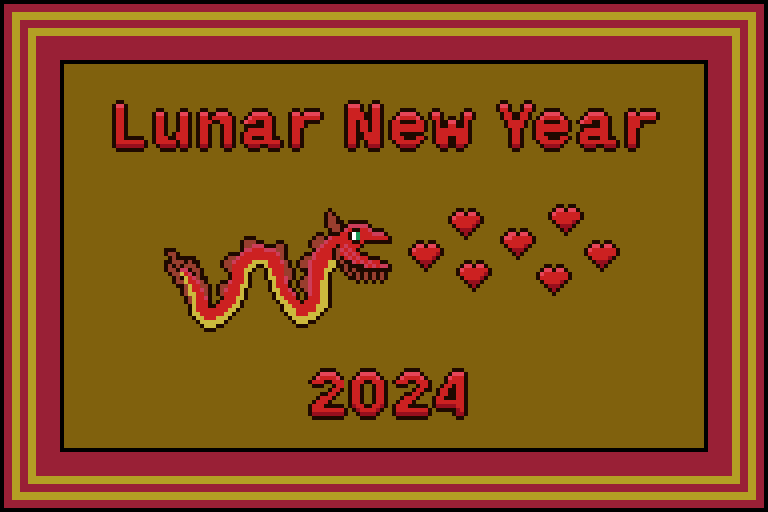
I decided to combine the year of the dragon with the hearts of valentine’s day. My idea was to draw a dragon which fires hearts out of it’s mouth. So I started with the dragon, then drew the hearts. I then added the text, and finally the frame. The sprite is made up of 13…
-
Heart regen animation

I created these heart regeneration animations using a mixture of coding and pixel art. The heart fills up and particles constantly spawn. When the heart is full it scales up in size, using the scale and barrel distortion. It also gets brighter, before returning to normal size.
-
Creating a sepia vignette effect in GIMP
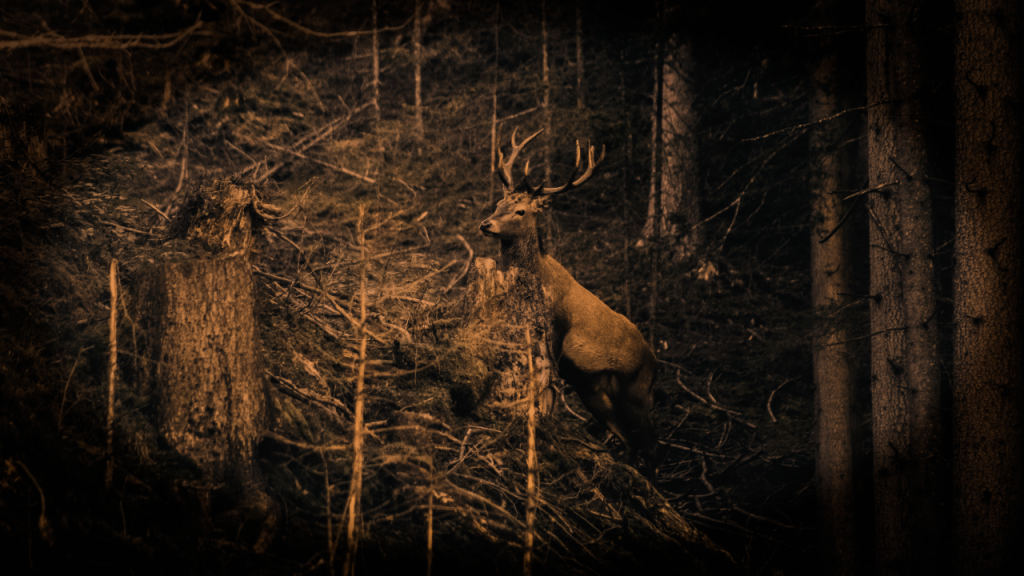
Learn how to create a sepia vignette effect in the GIMP image editor. The process should be similar for other image editors like Adobe Photoshop. You will adjust the contrast, convert to greyscale, colorize, and use an ellipse with gaussian blur to create a vignette.
-
Creating a duotone gradient in GIMP
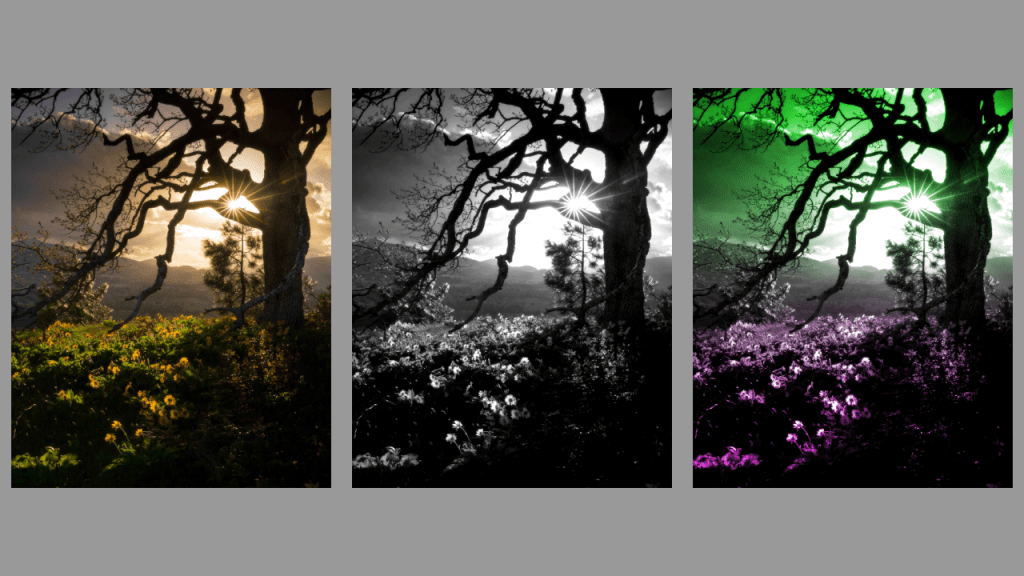
This tutorial demonstrates how to create a duotone gradient in GIMP, applicable to other image editors like Adobe Photoshop. Find an image, convert to greyscale, adjust contrast, create a gradient, and apply overlay blend mode to finish. Experiment with different gradients for unique effects. Happy editing!
 Agate DRAGON Games