
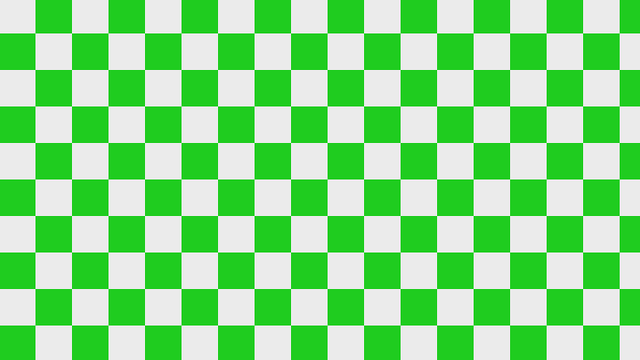
Learn how to create a checkerboard pattern in Shadertoy using the GLSL programming language.
UV coordinates
First calculate the UV coordinates inside the main function.
vec2 uv = fragCoord / iResolution.xy;
Checkerboard
Create a checkerboard pattern by supplying the function with the UV coordinates and the total number of squares on the x and y axis.
The floor function rounds a number down to the nearest integer, whilst the mod function returns the remainder after division. The function returns either 0 or 1 depending on which square it is currently in, based off of the UV coordinates. This will be useful for mixing colours together later.
float Checkerboard(vec2 uv, vec2 total)
{
	float x = floor(total.x * uv.x);
	float y = floor(total.y * uv.y);
	return mod(x + y, 2.0);
}
Call the Checkerboard function inside the main function.
float c = Checkerboard(uv, TOTAL);
Mix colours
Supply the mix function with two colours and the checkerboard value to set the colours of the alternating squares.
vec3 result = mix(COL1, COL2, c);
Output colour
Set the output colour using the result of the mix.
fragColor = vec4(result, 1.0);
Aspect ratio
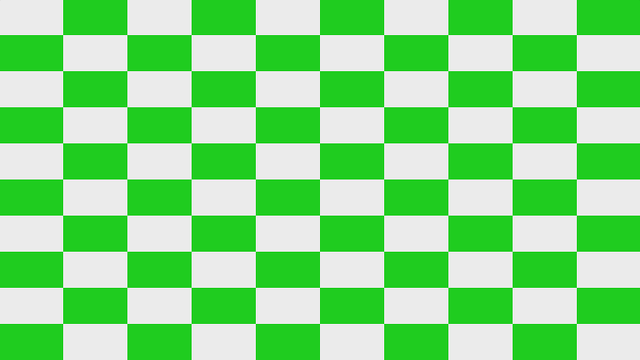
The UV coordinates can be aspect ratio corrected, to make the squares stay square shaped! This needs to be done before calling the checkerboard function.
vec2 aspect = iResolution.xy / min(iResolution.x, iResolution.y);
uv *= aspect;
Shadertoy
Full Shadertoy code and demo available here.
Conclusion
Thank you for reading this tutorial. Let me know in the comments section if you enjoyed it, or have any questions!
 Agate DRAGON Games
2 responses to “Creating a checkerboard pattern in Shadertoy”
Thanks 👍
Beautiful