

Learn how to create a scanline shader in Shadertoy using floor and modulus. Use it to give your images a old CRT television or computer monitor look, or create cool backgrounds.
Step 1: UV coordinates
Calculate the UV coordinates.
vec2 uv = fragCoord / iResolution.xy;
Step 2: Scanlines
Create a scanlines function.
float Scanlines(float x, float repeat, float modValue)
{
    x = floor(x * repeat);
    return mod(x, modValue);
}
The floor function will round the number down, whilst the mod function will return the remainder after division.
Call the scanlines function, and use the result for the RGB values when rendering.
void mainImage( out vec4 fragColor, in vec2 fragCoord )
{
    vec2 uv = fragCoord/iResolution.xy;

    float repeat = 10.0;
    float modValue = 2.0;
    float scanlines = Scanlines(uv.y, repeat, modValue);

    fragColor = vec4(vec3(scanlines), 1.0);
}
We pass the scanlines function three arguments:
- Vertical UV coordinate.
- The number of scanlines.
- The modulus value.
Step 3: Repeat
Play with the repeat value to change the number of scanlines.



Step 4: Animate
Animate the scanlines using time.
float scanlines = Scanlines(uv.y + iTime * 0.1, repeat, modValue);

Step 5: Modulus
Play with the modValue to make the white area larger when the value is above 2.
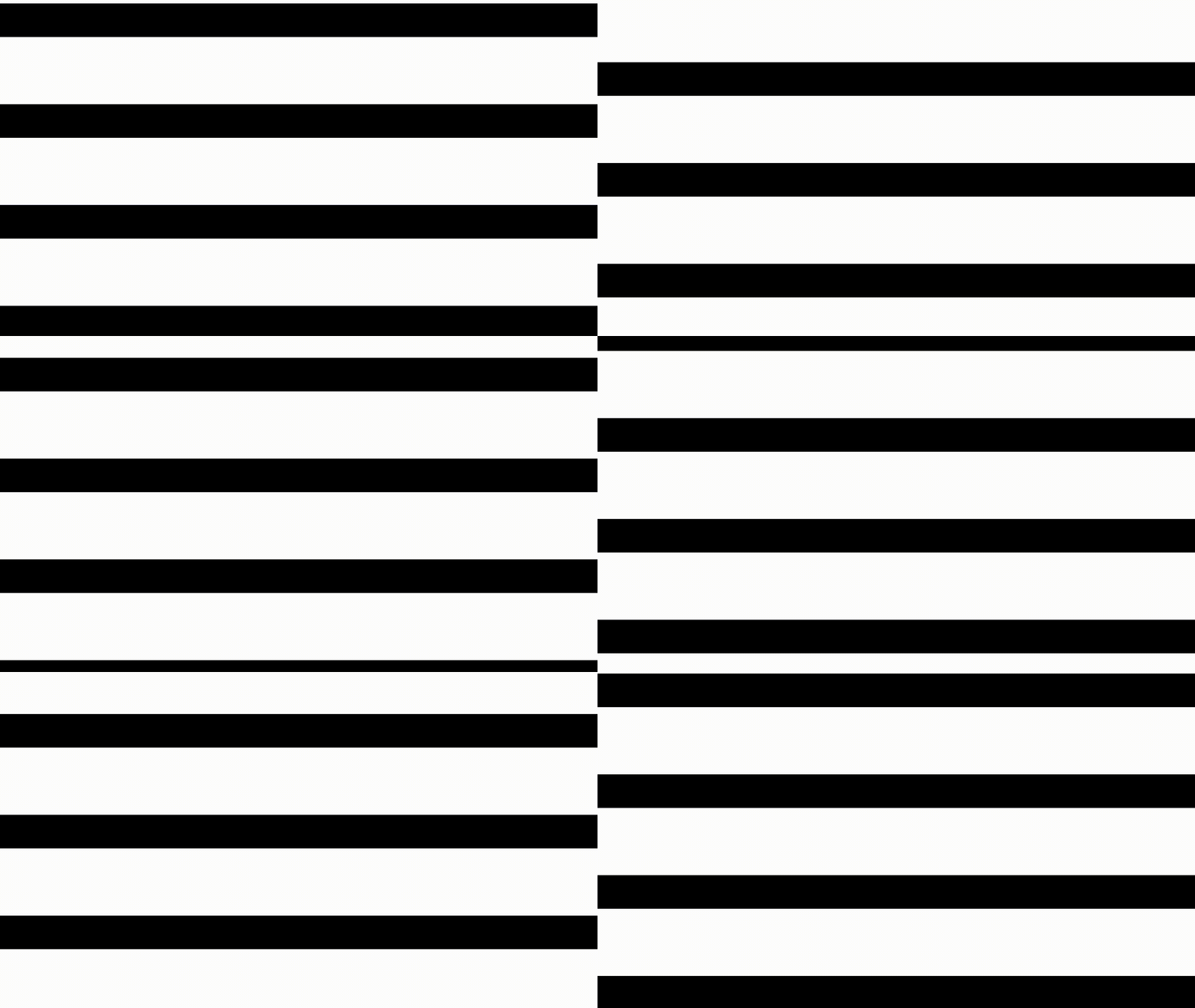

Conclusion
This tutorial has shown you how easy it is to create scanlines in Shadertoy using floor and modulus.
You can view and play with the Shadertoy program values here.
In the next tutorial we will learn how to change the colours of the scanlines and how to mix with a texture.
Thank you for reading this tutorial. Let me know in the comments section if you enjoyed it, or have any questions!
 Agate DRAGON Games
4 responses to “Creating a scanline effect in Shadertoy”
Thanks for sharing this idea Anita
Thanks for the visit Anita!
This was really handy. It helped me get my own CRT effect up and running much faster than other tutorials I’ve found.
Thanks Steph, glad it was useful for you 🙂