
This tutorial will show you how to create a duotone effect in the GIMP image editor. The process should be similar for other image editors like Adobe Photoshop.
Step 1: Find an image
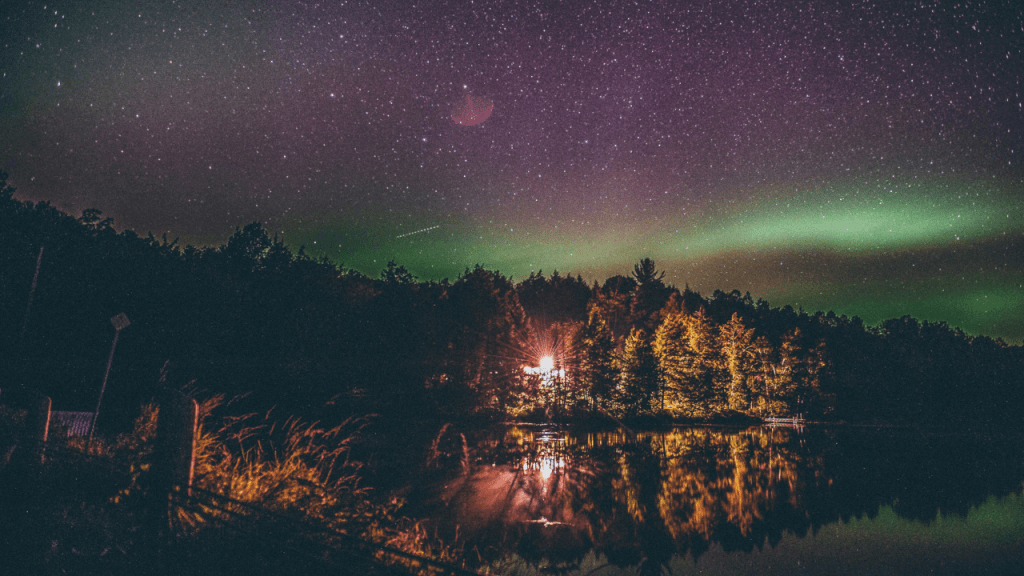
First off you will need an image. The effect works best with images which have shadows and highlights. I used this fantastic image of the Aurora Borealis.
Step 2: Convert to greyscale
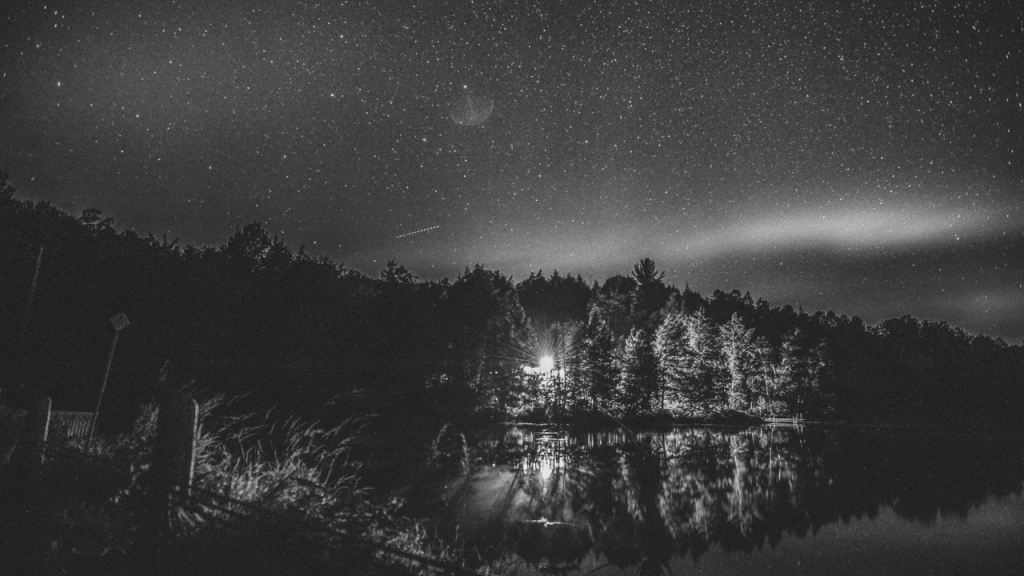
Next you will want to convert the image to greyscale. There are many ways of doing this in image editor programs, and you may choose any of them. In GIMP, I went to:
Colors –> Desaturate –> Desaturate
I picked Luminance as the Mode, and clicked ok.
Step 3 (optional): Adjust contrast
As an optional step, you might want to adjust the contrast of your greyscale layer. Feel free to experiment.
Step 4: Add layer masks
Duplicate the greyscale layer twice. Call the first duplicate Shadow, and the second duplicate Highlight.
Right click on the Shadow layer and click Add Layer Mask. Click Grayscale copy of layer and press Add. Do the same thing for the Highlight layer.
Click on the Shadow layer mask thumbnail and go to:
Colors –> Invert
Step 5: Select colours
Next select two colours to use. You will need one colour for the shadow, and one colour for the highlight. You can use any colour you like, however complementary colours work well. You could also use black and white. Or black and any other bright colour. Feel free to experiment!
Step 6: Use colours
Select the Shadow layer image thumbnail, then select all the pixels and fill them with your shadow colour.
Select the Highlight layer image thumbnail, then select all the pixels and fill them with your highlight colour.
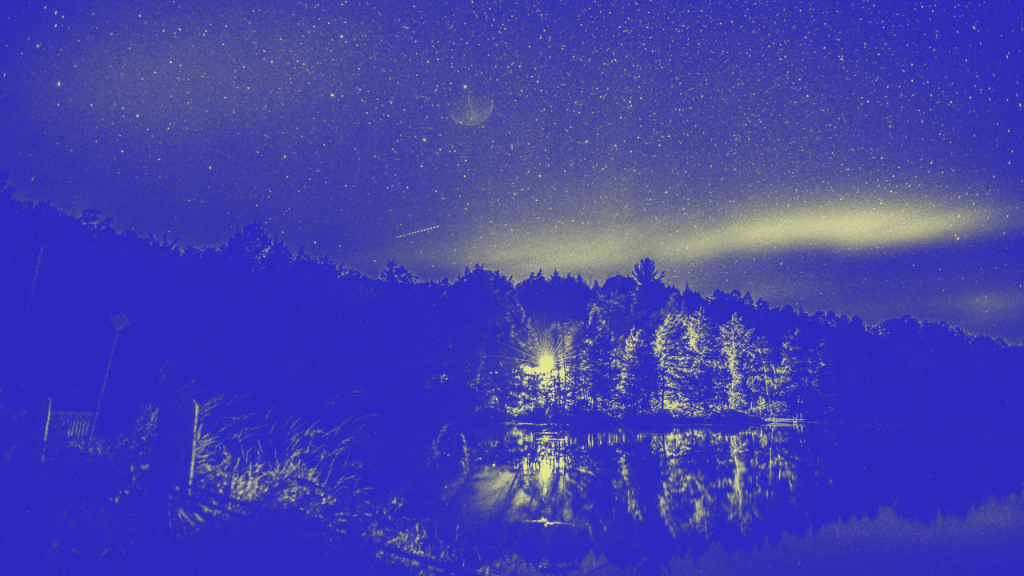
And you are done!
Step 7: Adjust layer opacity
However if you want to make the effect more subtle, then all you need to do is adjust the opacity of the Shadow and the Highlight layer.

Thank you for reading this tutorial, I hope you found it useful!
See this tutorial for how to create a duotone effect in a shader.


3 responses to “Creating a duotone effect in GIMP”
Wish you and your family a very Happy New year 2024.
Let there be positivity and productivity to conquer this year.
Hope everyone is in beautiful health and mindset.
Regards,
Early Morning Memories
Anuran and Sayoni
Thank you for the kind comment, I wish you a very happy new year to. And may all your dreams come true!
Yours too