
Category: GIMP
-
Creating Textures for a Dissolve Shader

Learn how to create a texture for a dissolve shader using the GIMP image editor. This tutorial will show you two methods.
-
Creating a noisy polaroid frame in GIMP

Learn how to create a noisy polaroid frame in this GIMP image editor tutorial using spread noise and median blur.
-
Creating a planet in GIMP

Learn how to create a cool looking planet using the GIMP image editor. You will learn how to use noise, blur, gradients, lighting and blend modes to create beautiful art.
-
Creating a Blurred Circle Particle in GIMP: Step-by-Step Tutorial
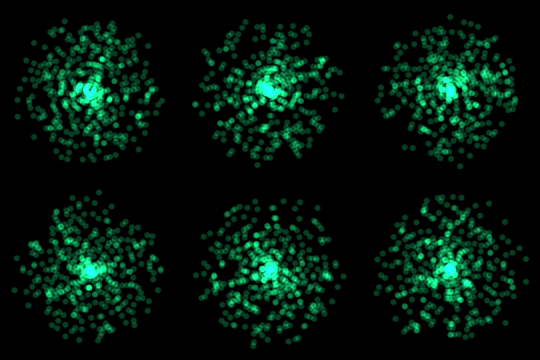
Learn how to create a circle particle in the GIMP image editor using gaussian blur. This type of image works great when used in a particle system as a visual effect for video games or films.
-
Creating a metal texture in GIMP
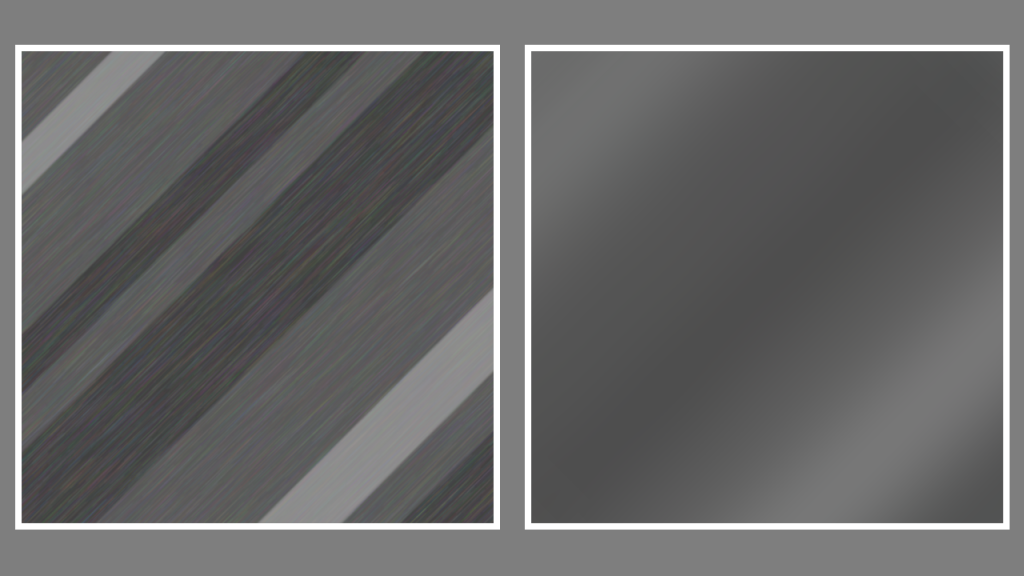
Learn how to create a metal texture in the GIMP image editor by drawing lines of varying sizes. Use noise, linear motion blur, gaussian blur and plasma to create a nice metal texture.
-
Creating a wood texture in GIMP
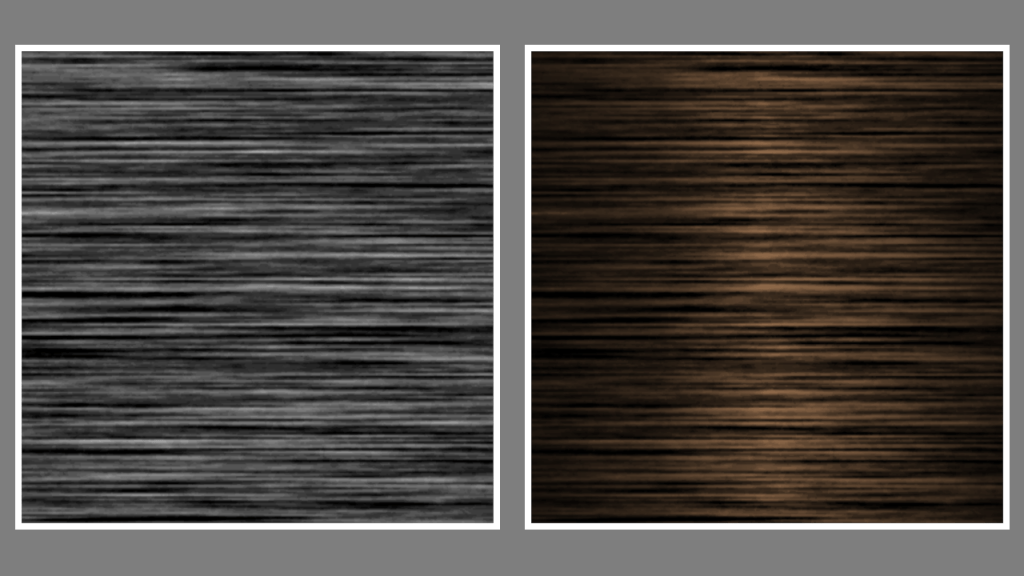
Learn how to create a wood texture in the GIMP image editor using noise, motion blur, levels and gradients. You can use the wood to texture 3D models for video games and other types of computer-generated imagery.
-
Creating a drop shadow effect in GIMP
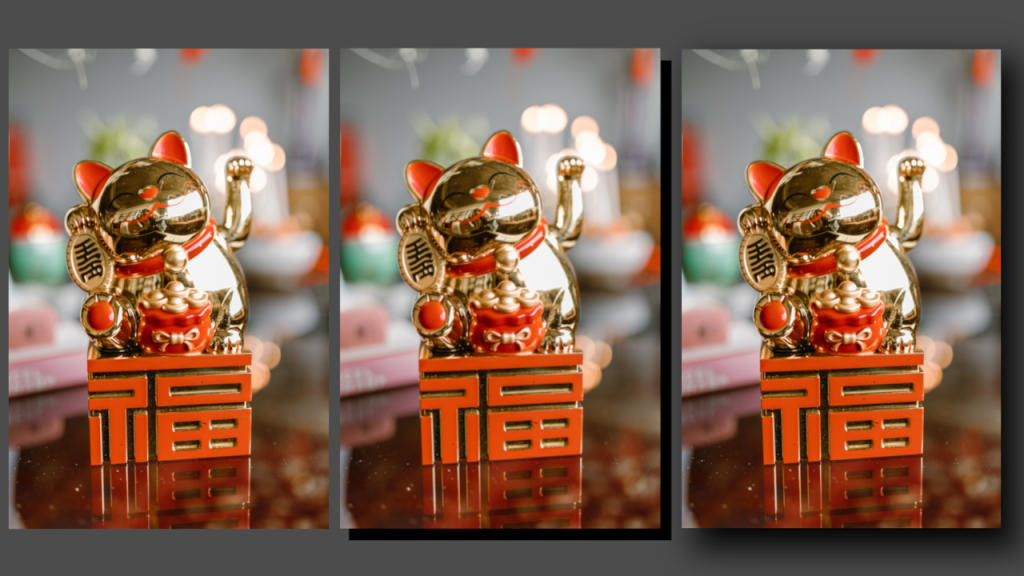
Learn how to apply a drop shadow effect to any image in the GIMP image editor by creating a shadow layer and applying gaussian blur. The process is similar for other image editors like Adobe Photoshop.
-
Creating a sepia vignette effect in GIMP
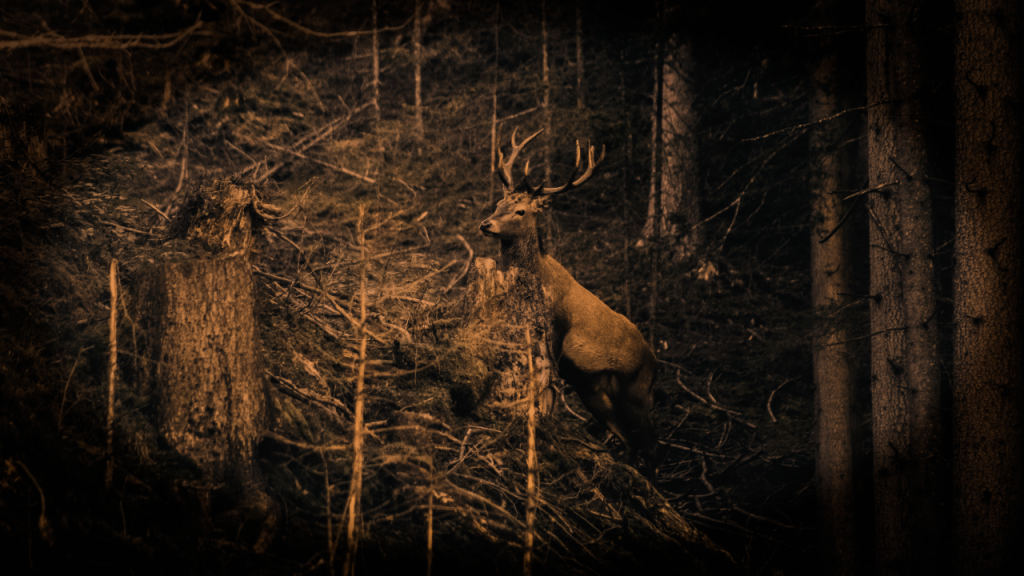
Learn how to create a sepia vignette effect in the GIMP image editor. The process should be similar for other image editors like Adobe Photoshop. You will adjust the contrast, convert to greyscale, colorize, and use an ellipse with gaussian blur to create a vignette.
-
Creating a duotone gradient in GIMP
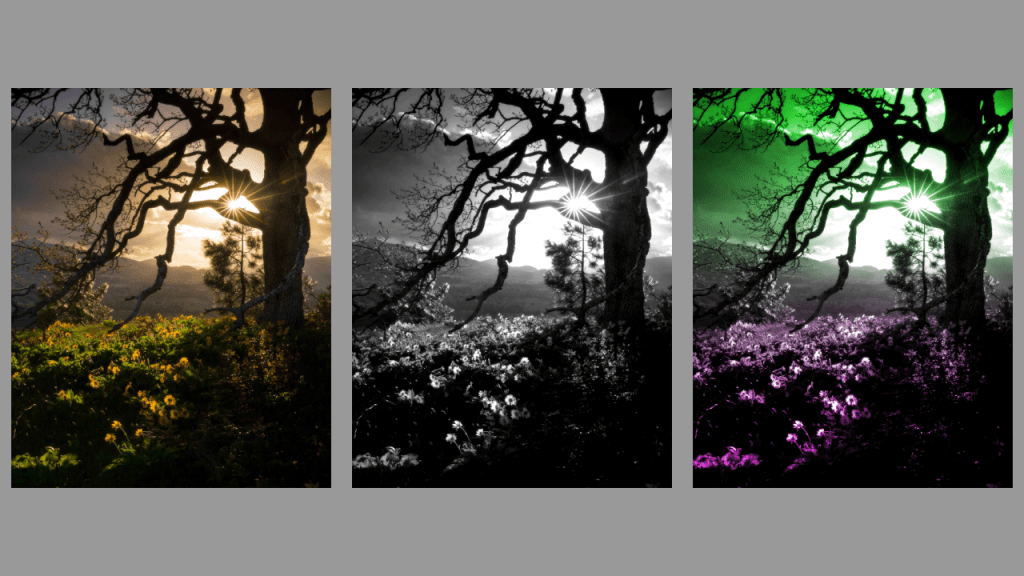
This tutorial demonstrates how to create a duotone gradient in GIMP, applicable to other image editors like Adobe Photoshop. Find an image, convert to greyscale, adjust contrast, create a gradient, and apply overlay blend mode to finish. Experiment with different gradients for unique effects. Happy editing!
-
Creating a duotone circle effect in GIMP
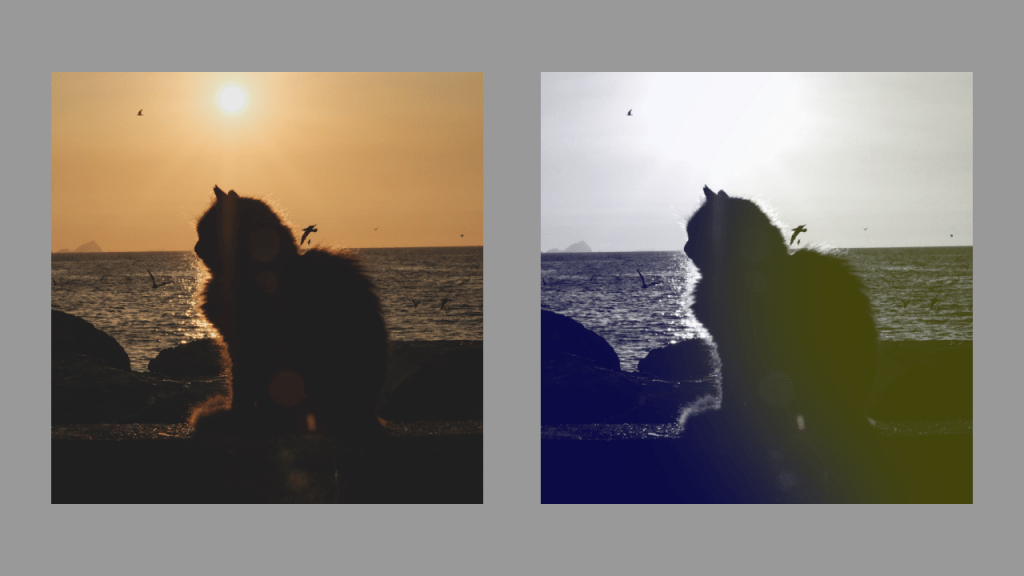
Learn how to create a stunning duotone circle effect using GIMP. Choose a suitable image, convert it to greyscale, select colours, create a circle, apply Gaussian blur, and adjust the layer opacity. Experiment with different colours and contrasts for a unique result. Enjoy enhancing your images with this creative technique!
 Agate DRAGON Games