

Learn how to create an RGB split effect using Aseprite in this step-by-step pixel art tutorial. RGB split is also known as chromatic aberration, and is commonly found in glitch visual effects.
Introduction
The idea of the RGB split effect is to split an image into 3 separate images using the red, green and blue colour channels. Then 2 of the images are offset from the centre. For example the red colour channel might be offset to the left, and the blue channel might be offset to the right. Then the 3 images are blended together using a blend mode.
Step 1
Drag the image you want to use into Aseprite and increase the canvas size so you have some space to work with. I am using a 32×32 image, so I have resized the canvas to 48×48. Rename the current layer to ‘image’.
Step 2
Next create a new layer and call it ‘background’. Drag the new layer below the current layer and fill it with a neutral colour.

Step 3
Duplicate the image layer, and call the duplicate ‘left’.
Go to: Edit –> Adjustments –> Hue / Saturation
Select ‘HSV+’.
Drag the saturation value to 100.
Then shift the hue to a red colour.
Set the brightness to around 50.
Finally press ‘ok’.

Step 4
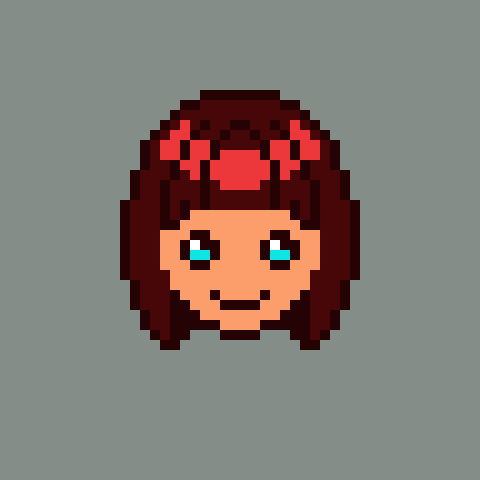
Next go to the layer properties of the ‘left’ layer. Select the overlay blend mode and set the opacity to around 80%.
Step 5
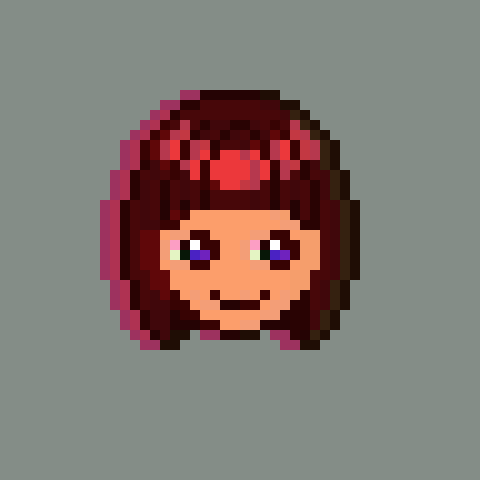
Now move the ‘left’ layer around 2 pixels to the left.
You can either use the move tool, or select all the pixels with CTRL + A, then use the left arrow key to move 1 pixel at a time.
Step 6
Next we need to create an image for the right side.
Duplicate the image layer, and call the duplicate ‘right’.
Drag the ‘right’ layer to the top of the stack, so you can see it.
Now follow the instructions in step 3, but this time hue shift to a blue colour instead.

Step 7
Next follow steps 4 and 5 with the ‘right’ layer. But this time move the ‘right’ layer 2 pixels to the right.

Conclusion
Congratulations on completing this tutorial! Feel free to play around with different colours and blend modes to see what you can come up with. You can also add and offset more layers.
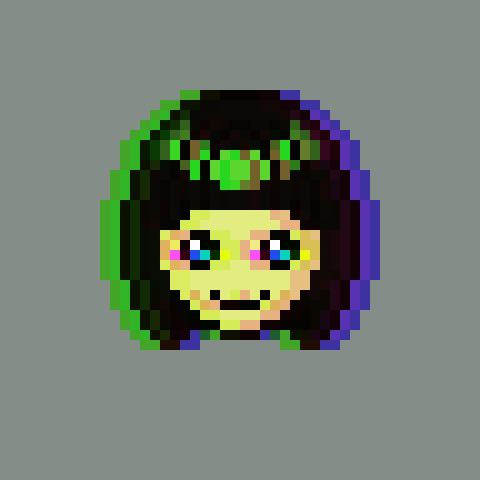
Thanks for reading this tutorial, I hope you enjoyed it and learned how easy it is to create an RGB split effect in Aseprite.
See more pixel art tutorials here.
 Agate DRAGON Games