
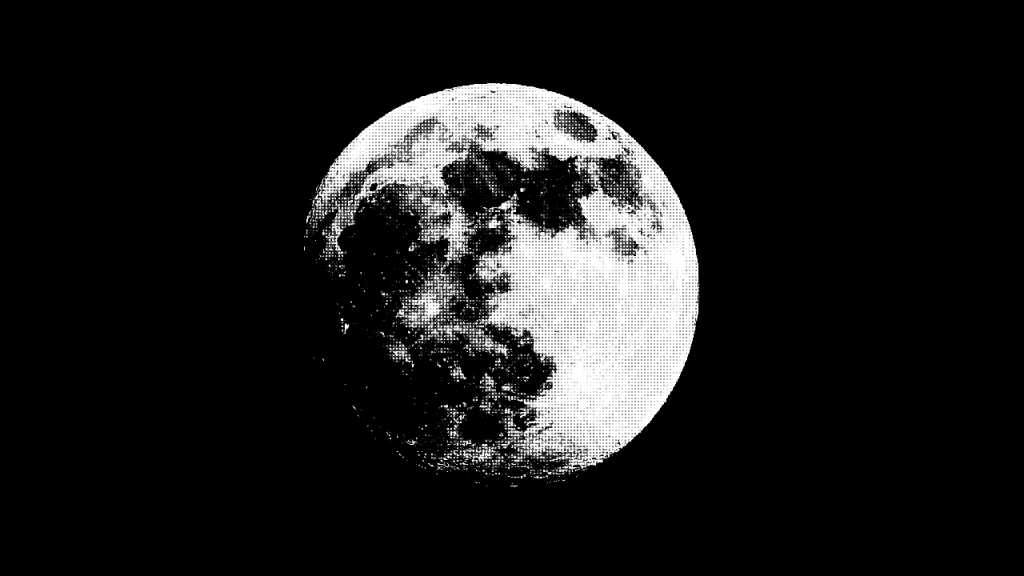
Learn how to create a halftone shader using the GLSL programming language. Create a halftone pattern using multiplication, aspect ratio correction, conversion to greyscale, smoothing and the distance to the centre of a circle.
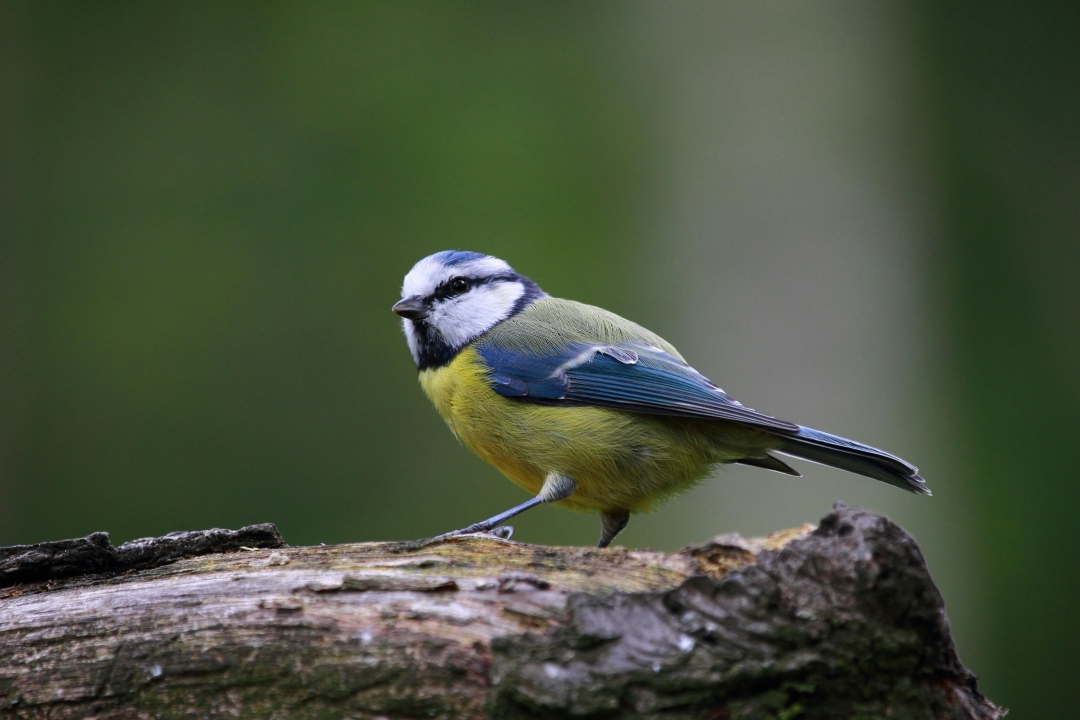
I used these beautiful images of a full moon and a blue tit bird sitting on a branch for the tutorial.

Aspect ratio
Calculate the aspect ratio.
float w = 1.0 / min(resolution.x, resolution.y);
vec2 aspectRatio = resolution * w;
Texture coordinates
Two types of texture coordinates are used. The first is in the 0 to 1 range called texCoord. The second is aspect ratio corrected to make sure the halftone circles are not elliptical in shape.
vec2 uv = texCoord * aspectRatio;
Circle total
Define the total number of circles using the minimum resolution, which is passed into the shader as a uniform and represents the texture size. Use the fract function to define the number of circles and offset the position variable so that the circles are centred.
float total = min(resolution.x, resolution.y);
vec2 pos = fract(uv * total);
pos -= 0.5;
Greyscale
Get the current pixel colour, and convert it to greyscale using weights.
// Current pixel colour
vec4 pixel = texture(textureUnit, texCoord);

// Convert to greyscale
const vec3 GREY_WEIGHTS = vec3(0.299f, 0.587f, 0.114f);
float greyResult = dot(pixel.rgb, GREY_WEIGHTS);
Circle distance
Get the distance to the centre of the circle. Use the inverse of the greyscale brightness to define the radius of each circle.
float radius = 1.0 - greyResult;
float c = Circle(pos, radius);
Circle function:
float Circle(vec2 pos, float radius)
{
    return length(pos) - radius;
}
Smoothing
Apply smoothing to the circle edges.
float SMOOTHING = 4.0;
float s = SMOOTHING * w;
c = 1.0 - smoothstep(s, -s, c);
Pixel alpha
Set the output fragment pixel alpha.
fragColour.a = pixel.a;
Multiply
Multiply the current pixel colour with the circle distance value.
fragColour.rgb = pixel.rgb * c;


Black and white
Or multiply with the greyscale value to get a black and white image.
fragColour.rgb = vec3(greyResult * c);


Conclusion
Thank you for reading this tutorial. Let me know in the comments section if you enjoyed it, or have any questions!
See part two for more blending options.
 Agate DRAGON Games
2 responses to “Creating a halftone shader”
This Full Moon
Anita
Yes, it is a beautiful moon 🙂