
Learn how to create a circle pattern in Shadertoy using the GLSL programming language.
Texture coordinates
This tutorial requires two types of texture coordinates. The first is the usual one in the 0 to 1 range, which will be used to scale the radius of each circle.
// Normalised pixel coordinates (from 0 to 1)
vec2 texCoord = fragCoord / iResolution.xy;
The second type of texture coordinates is aspect ratio corrected, so the circles appear as circles and not as ellipses on wide and tall aspect ratios.
// Aspect ratio corrected UV coordinates
float w = 1.0 / min(iResolution.x, iResolution.y);
vec2 uv = fragCoord * w;

Circle total
The fract function can be used to create multiple circles by scaling the aspect ratio corrected UV coordinates by a number larger than one. This number represents the total number of rows of circles.
// Position and number of circles
const float ROWS = 18.0;
vec2 pos = fract(uv * ROWS);
pos -= 0.5;
The position variable is offset by 0.5 to create the circles from the centre of the screen so they look like circles and not wedges.

Create circles
Signed distance field function for a circle.
float Circle(vec2 pos, float radius)
{
    return length(pos) - radius;
}
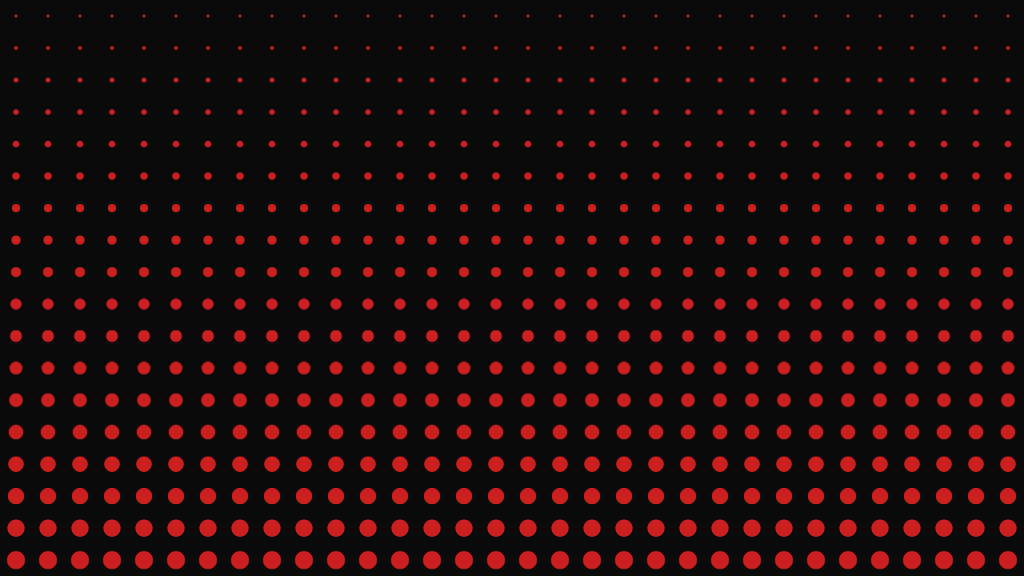
Get the distance to the circle centre. A value is added to the starting radius value of 0.03. This value is scaled based on the vertical texture coordinates. This makes the circles smaller at the top and larger at the bottom, and is purely a stylistic choice.
float radius = 0.03 + 0.25 * (1.0 - texCoord.y);
float c = Circle(pos, radius);
Smooth the edges of the circles using a constant for the pixel size and the aspect ratio, to keep the smoothing consistent if the resolution changes.
const float SMOOTHING = 24.0;
float s = SMOOTHING * w;
c = smoothstep(s, -s, c);

Mix
Finally two colours are mixed together using the circle distance value. A background colour, and a foreground colour for the circles.
vec3 BACKGROUND = vec3(0.04);
vec3 FOREGROUND = vec3(0.8, 0.12, 0.12);
fragColour.rgb = mix(BACKGROUND, FOREGROUND, c);
fragColour.a = 1.0;
Shadertoy
Full Shadertoy code and demo available here.
Conclusion
Thank you for reading this tutorial. Let me know in the comments section if you enjoyed it, or have any questions!
 Agate DRAGON Games