
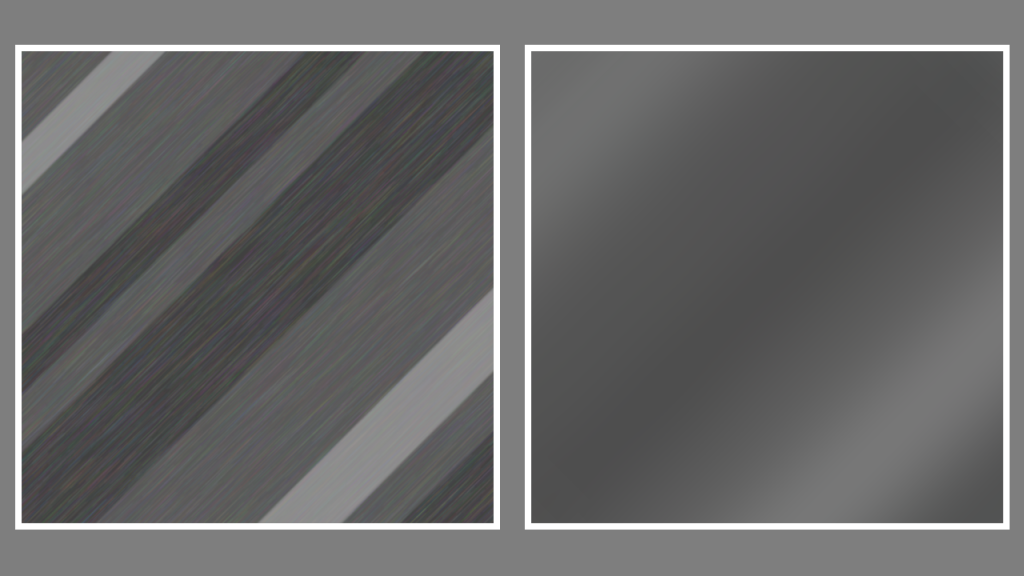
Learn how to create a metal texture in the GIMP image editor by drawing lines of varying sizes. Use noise, linear motion blur, gaussian blur and plasma to create a nice metal texture.
Metal lines
Create a new layer with a grey background. Then create some lines of varying sizes and 3 colours using the rectangle select tool. To create a line, select a rectangle from the left side of the canvas to the right side of the canvas. Then pick a new grey colour.
Go to Edit –> Fill with FG Color
The selected rectangle should be filled with the grey colour you selected. Feel free to experiment with more or less colours and different sizes, until you get something similar to this:

Rotate
This is technically a optional step, but I rotated the texture by 135 degrees using the rotate tool. You will also need to scale the image up so there are no transparent areas inside the canvas.

Noise
Go to Filters –> Noise –> Hurl
And hurl a small amount of noise on top of the metal lines. This will be used to add a textured brushed look to the metal.

Linear blur
Go to Filters –> Blur –> Linear Motion Blur
Apply enough length to turn the noise dots into lines. Set the angle to something similar to what you used earlier when you rotated the metal lines.

Gaussian blur
Go to Filters –> Blur –> Gaussian blur
Apply a generous amount of gaussian blur so that the metal lines start to blend together.
Feel free to experiment here with weaker and stronger blur values.

Plasma
You can add more texture to the metal if you wish using plasma. Create a new transparent layer called plasma.
Go to Filters –> Render –> Noise –> Plasma
Pick a turbulence value below 1. Then desaturate the plasma.
Go to Colors –> Desaturate –> Desaturate
Use any mode you like for the desaturate.
Change the layer blend mode for the plasma to overlay and drop the opacity down.

Plasma linear blur
You can also apply linear motion blur to the plasma, using the same angle as before. Turn the opacity back up.

Or create another plasma layer and apply linear blur to only the top one. Use the overlay blend mode for both.
Conclusion
Thank you for reading this tutorial. Let me know in the comments section if you enjoyed it, or have any questions!
 Agate DRAGON Games