
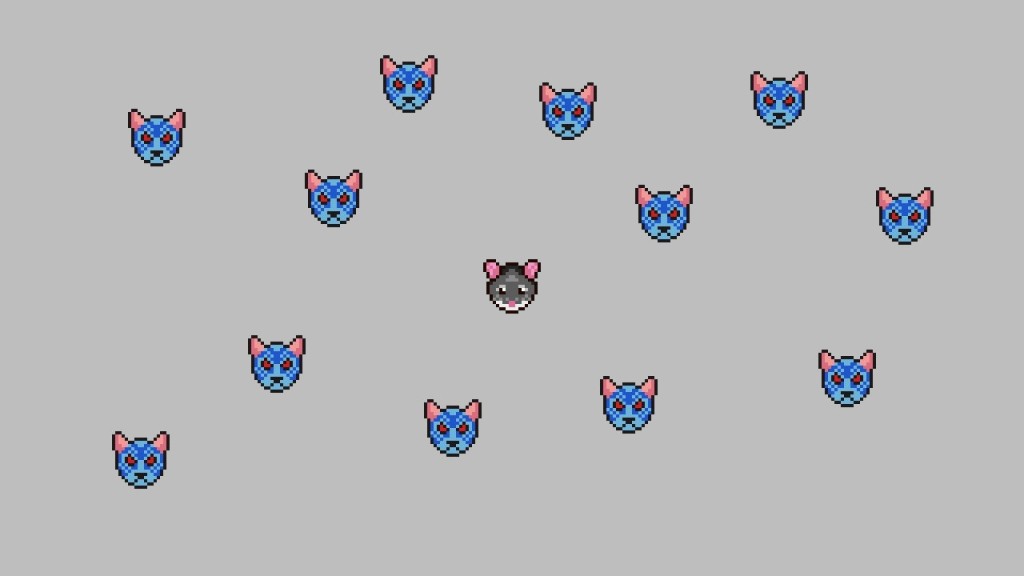
Learn how to create a cat and mouse game in Processing using Java. You will control the mouse, and try to survive against the hungry and angry cats! You will learn how to code the movement for a player and enemies in a game using vector math. We will use circles to detect collisions. Load and render images. Create a class and a timer, and draw text.
Game design
- The player controls a animal mouse using the computer mouse.
- The player must avoid the cats to survive.
- A timer shows how long the player has survived.
- The timer is reset when the player collides with a cat.
Step 1: Data folder
First create a new Processing Sketch and save it, then go to:
Sketch --> Show Sketch FolderCreate a folder here called ‘data’. The ‘data’ folder will be used to store the images we need.
I’ve created two sprite images in Aseprite to use for this tutorial. I intentionally made them circular, since we will be using circular collision detection later.
Here is the mouse sprite we will be using:

And the angry blue cat sprite:

You will need to download both of them. Make sure they are named “Mouse.png” and “Cat.png” respectively. Then put them in the ‘data’ folder.
Step 2: Load images
First create two PImage variables at the top of the program. One for the mouse, and one for the cat.
PImage mouseImage;
PImage catImage;
Next set the window size and load both images in setup. The loadImage function takes a String which is set to the name of the image files.
void setup()
{
  size(1280, 720);

  mouseImage = loadImage("Mouse.png");
  catImage = loadImage("Cat.png");
}
Lets check they draw correctly, by added some code to the draw function.
void draw()
{
  background(190);
  image(mouseImage, 100, 100);
  image(catImage, 200, 100);
}
The image function takes a PImage, and an x and y position to draw the image from.
Step 3: Start time
Create a new integer variable at the top of the program called startTime. We will use this variable to find out how long the player has stayed alive.
int startTime = 0;
Set startTime to the value of millis in the setup function.
startTime = millis();
Step 4: Draw time
Lets draw how long the player has currently survived to the screen in text. Put this code at the end of the draw function, before the closing curly brace.
fill(255);
textSize(128);
textAlign(CENTER);
String currentTime = str((millis() - startTime) / 1000);
text(currentTime, width / 2, 120);
The code sets the text fill colour, text size and the alignment to the centre of the screen.
Then it creates a String called currentTime. Which calculates the difference between the current time in milliseconds and the startTime we created earlier. We divide by 1000 to convert to seconds, then use the str function to convert the number to a String.
Finally we draw the the text with the currentTime String, from the centre of the screen on the x axis, and 120 pixels down on the y axis. Remember that the origin (0, 0) is at the top left, and y is positive in the downwards direction in Processing.
You can read more about text rendering here, if you want to learn more.
Step 5: Use mouse
Next we are going to draw the mouse sprite, at the computer mouse position. We need to offset by half of the image width and height, so that the mouse is drawn from the centre. Else it will get drawn from the top left of the computer mouse position.
  float x = mouseX - mouseImage.width / 2;
  float y = mouseY - mouseImage.height / 2;
  image(mouseImage, x, y);
Step 6: Circle class
Now we are going to create a class called Circle. A class enables us to group variables and functions together. The Circle class has three variables. The x and y for position, and the radius.
There are three functions. The first function sets the position, the second function sets the radius.
The this keyword refers to a variable belonging to the class. For example the class x variable is getting set to the x which has been passed into the function.
this.x = x
class Circle
{
  float x = 0;
  float y = 0;
  float radius = 1;

  void SetPosition(float x, float y)
  {
    this.x = x;
    this.y = y;
  }

  void SetRadius(float radius)
  {
    this.radius = radius;
  }

  boolean Overlaps(Circle other)
  {
    float dx = x - other.x;
    float dy = y - other.y;
    float dr = radius + other.radius;
    return dx*dx + dy*dy < dr*dr;
  }
}
The last function called Overlaps is used to check if two circles overlap each other. The function takes another circle as an argument.
We first calculate the distance between the two circle positions. Which means we need to subtract one position from the other. In this case it doesn’t matter which way round we do it.
float dx = x - other.x;
float dy = y - other.y;
Then we will add the radius of both circles together.
float dr = radius + other.radius;
Finally we square dx, dy and dr by multiplying them against themselves. The squared dx and dy are added together and compared against the squared radii. Remember multiplication takes precedence over addition. If the sum of the squared positions is less than the squared radii, then the circles are overlapping.
return dx*dx + dy*dy < dr*dr;
The function returns a boolean which gives us true or false as a result. So the function returns true if the circles overlap, or false otherwise.
Step 7: Create circles
Lets create two circles at the top of the program. One for the player and one for a cat.
Class variables are different to the standard variables like int and float. You need to use the new keyword and the parenthesis () to create one.
Circle playerCircle = new Circle();
Circle catCircle = new Circle();
Now we will set the position and the radius of the player and cat circles in the setup function.
  playerCircle.SetPosition(width / 2, height / 2);
  playerCircle.SetRadius(32);

  catCircle.SetPosition(200, 100);
  catCircle.SetRadius(32);
Step 8: Game logic
We are going to split the draw function up into two key functions. One for the game logic, and one for the rendering of sprites and text.
void draw()
{
  GameLogic();
  Render();
}
The game logic function is for doing the non-rendering tasks, like moving the player, enemies and checking collisions.
For now we will update the player circle position with the mouse position. Then check if the cat circle overlaps the player circle. If it does, then we will reset the survival timer.
void GameLogic()
{
  playerCircle.SetPosition(mouseX, mouseY);

  if(catCircle.Overlaps(playerCircle))
  {
    startTime = millis();
  }
}
Step 9: Render function
Lets talk about the render function next. The first thing we will do is to clear the screen to a bright grey colour.
background(190);
Next we will render the mouse and cat sprites. The origin of our circles is at the centre. Hence why we need to offset by half of the image size, when rendering the images.
// Render images
// Cat
float catX = catCircle.x - catImage.width / 2;
float catY = catCircle.y - catImage.height / 2;
image(catImage, catX, catY);

// Mouse
float playerX = mouseX - mouseImage.width / 2;
float playerY = mouseY - mouseImage.height / 2;
image(mouseImage, playerX, playerY);
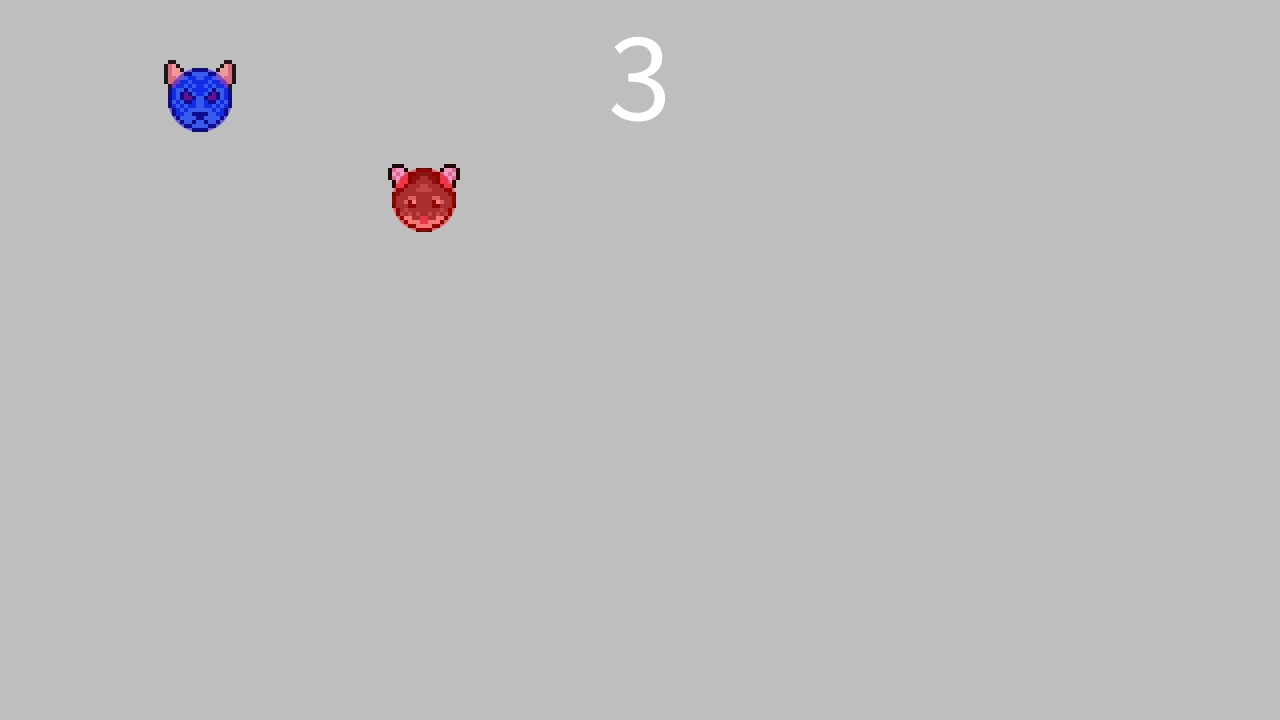
If you want to visualise the size of the collision circles, then you can use this the code below. The fourth argument in the fill function sets the transparency to around half (125).
Note that the we use double the radius for the third circle argument. This is because the circle takes the diameter for it’s third argument. The radius of a circle, is half of the diameter.
  // Render debug
  // Draw cat debug circle
  noStroke();
  fill(0, 0, 255, 125);
  circle(catCircle.x, catCircle.y, catCircle.radius*2);

  // Draw mouse debug circle
  noStroke();
  fill(255, 0, 0, 125);
  circle(playerCircle.x, playerCircle.y, playerCircle.radius*2);
And finally we will just render the text like we did before.
// Draw text
fill(255);
textSize(128);
textAlign(CENTER);
String currentTime = str((millis() - startTime) / 1000);
text(currentTime, width / 2, 120);
Step 10: Chase
Next lets make the cat chase the mouse, since currently it doesn’t move.
We will use some vector math to make the cat move towards the player. Like we did with the circle, we will calculate the distance between the player and the cat. Except this time the order is important.
We want to move towards the player, so we subtract the cats position from the player. If we do this the other way round, then the cat will flee from the mouse!
This code will go in the GameLogic function, just after setting the player position.
void GameLogic()
{
  // Player movement
  playerCircle.SetPosition(mouseX, mouseY);

  // Cat movement
  float dx = playerCircle.x - catCircle.x;
  float dy = playerCircle.y - catCircle.y;
Next we need to normalise the distance we calculated using Pythagorean theorem, so it is in the unit circle range of -1 to 1.
The sqrt gets us the length of the vector. A vector is a point in space. In our case it is made of two coordinates: x and y.
float len = sqrt(dx*dx + dy*dy);
We check that the length is greater than 0, since we don’t want to cause a divide by zero. Then we can divide our original distance vector by the length. This gives us a normalised vector.
if(len > 0)
{
  dx /= len;
  dy /= len;
}
We can use our normalised vector to make the cat move towards the mouse.
float catSpeed = 2.0f;
catCircle.x += dx * catSpeed;
catCircle.y += dy * catSpeed;
The cat will now move two pixels per draw call towards the player.
Conclusion
This tutorial has taught you how to create a cat and mouse game. You learned how to:
- Make the mouse sprite follow the computer mouse.
- Use vector math to make the cat move towards the player.
- Detect collisions using circles.
- Create a class.
- Time how long the player survives.
- Draw text.
- Load images.
Thank you for reading this tutorial. Let me know in the comments section if you enjoyed it, or have any questions!
In part two we will cover how to add more cats over time. We will also learn about tabs in Processing and how to make the code more reusable.
 Agate DRAGON Games