
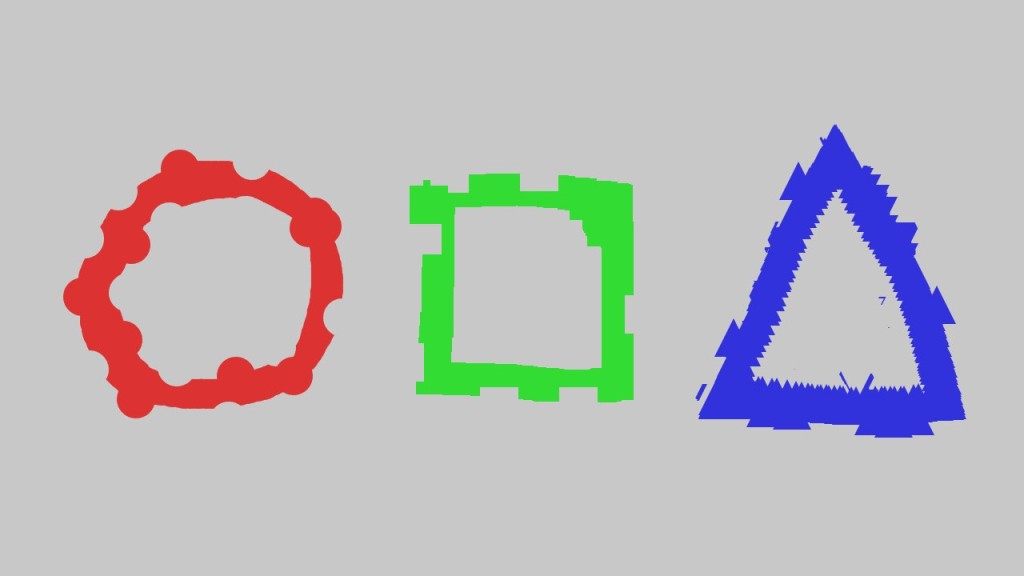
This tutorial leads on from the last tutorial about creating an eraser. We will add a save image function so we can save our masterpieces more easily! You will learn about characters and strings. Then how to give each saved image a unique name, so they don’t overwrite each other. We will also save each image to a specific folder in order to keep everything more organised.
Step 1: Save image
First create a new function called SaveImage. We will use this function to save an image with a unique name. We want to use a unique name so that we don’t overwrite the other images we saved.
void SaveImage()
{

}
The first thing we will do in the new function is store the current number of milliseconds as a String. The millis function returns the number of milliseconds which have passed since the program started as an integer. Integers are used to store whole numbers (so no decimals).
String millis = str(millis());
An integer in Java is declared like so:
int wholeNumber = 5;
However we want to store the millis integer value as a String. Hence why we use a function called str. The str function converts numbers to strings. We use the String data type to store a sequence of characters.
Individual characters can also be represented as a char, which is short for ‘character’. A String is made up of many characters.
char myCharacter = 'A';
So next we are going to get the following time and date values as strings:
String millis = str(millis());
String second = str(second());
String minute = str(minute());
String hour = str(hour());
String day = str(day());
String month = str(month());
String year = str(year());
We will now combine them all together using another String called combined and the addition operator.
String combined = millis + second + minute + hour + day + month + year;
For example we could add these two strings together like so:
String hello = "hello ";
String world = "world";
String combined = hello + world;
The combined String variable would then equal “hello world” if we printed it to the console.
Finally we are going to save an image of the display window. We use Processing’s save function to do this. The save function takes a String, which it uses as the filename. We also need to specify the file type. In this case I chose a JPEG, since I know we are not working with transparency. If we were working with transparency, then I would probably pick a PNG. But there are other formats you can use like TARGA and TIFF.
save("/Image/" + combined + ".jpg");
The filename also contains “/Image/”, which specifies that I want to save my image in a folder called ‘Image’. If the ‘Image’ folder does not exist then it will be created. The ‘Image’ folder will be created relative to the save location of the Processing Sketch. So I recommend you save your Processing Sketch and give it a name.
Once you have saved your Processing Sketch, you can find out where it is saved by going to Sketch at the top of the Processing Editor. Then click on ‘Show Sketch Folder’. This will take you to where your image should get saved.
Finished save function:
void SaveImage()
{
  String millis = str(millis());
  String second = str(second());
  String minute = str(minute());
  String hour = str(hour());
  String day = str(day());
  String month = str(month());
  String year = str(year());
  String combined = millis + second + minute + hour + day + month + year;
  save("/Image/" + combined + ".jpg");
}
Step 2: Key released
Now all we need to do is call our SaveImage function. I decided it would be best to call it when the ‘S’ keyboard key has been released:
void keyReleased()
{
  if(key == 'q' || key == 'Q')
  {
    ChangeBrushSize();
  }

  if(key == 's' || key == 'S')
  {
    SaveImage();
  }
}
Conclusion
Congratulations you now know how to save an image of your work! You also learned about:
- Characters, integers and strings.
- Time and date functions.
- Creating a unique filename.
Thank you for reading this tutorial. Let me know in the comments section if you enjoyed it, or have any questions!
 Agate DRAGON Games