
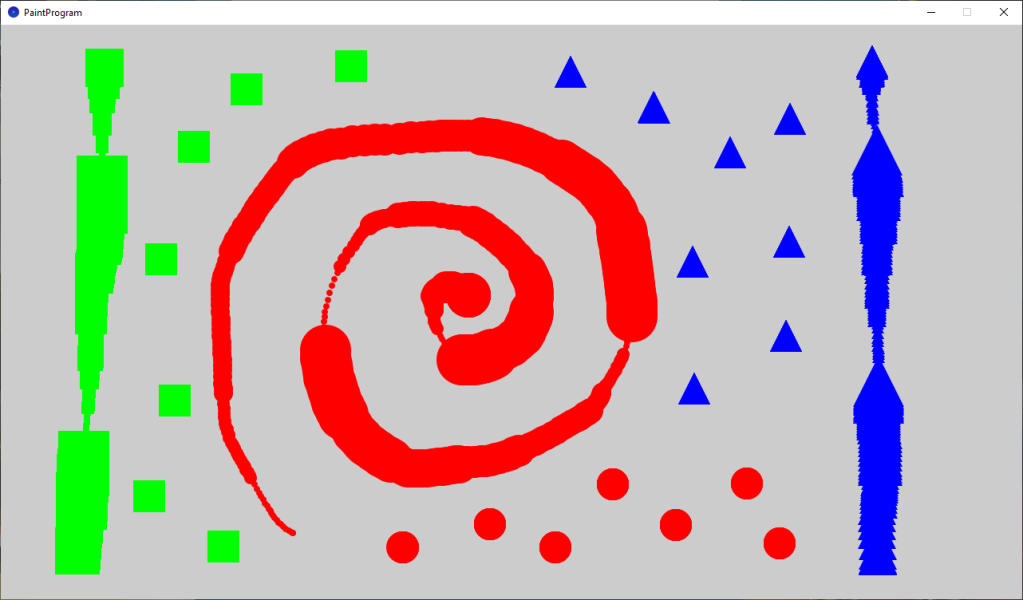
This tutorial leads on from the last tutorial, where we created a basic paint program. We are now going to improve our paint program by adding some new features. The user will be able to change the brush size and clear the screen.
Step 1: Clear screen
We will start off by creating a function to clear the screen.
The function will check if a key is pressed, then it will check if either a lowercase ‘r’ or uppercase ‘R’ is pressed. This ‘| |’ symbol represents an ‘or’. If the condition is true, then we set the background colour to a bright grey colour using Processing’s background function.
void ClearScreen()
{
  if(keyPressed && (key == 'r' || key == 'R'))
  {
    background(192);
  }
}
The ClearScreen function should be called at the top of the draw function like so:
void draw()
{
  ClearScreen();

  noStroke();
  SelectFill();
  DrawShape();
}
Step 2: Brush size
We will now create a new float variable called brushSize at the top of the program. This brushSize variable will control the size of the shapes which we draw. It’s default value will be 8.
float brushSize = 8;
Next we will create a new function to change the brush size.
void ChangeBrushSize()
{
  brushSize += 8;
  brushSize = brushSize > 64 ? 8 : brushSize;
}
The function adds 8 to the current brush size.
Then it uses the ternary operator, which is similar to an if else statement.
variable = condition ? true : false;
So we are checking if the brushSize is greater than 64. If it is, then we set it to 8. Else we will set it to it’s current value.
Step 3: Update draw shape
We will now update the DrawShape function to use the new brushSize variable instead of the hard coded value of 64. This means when the brushSize value changes, so does the size of the next shape which is painted.
void DrawShape()
{
  boolean leftMousePressed = mousePressed && mouseButton == LEFT;
  if(!leftMousePressed) return;

  float halfBrushSize = brushSize / 2;
  switch(shape)
  {
    case circle:
      circle(mouseX, mouseY, brushSize);
      break;
    case square:
      float x = mouseX - halfBrushSize;
      float y = mouseY - halfBrushSize;
      square(x, y, brushSize);
      break;
    case triangle:
      float x1 = mouseX;
      float y1 = mouseY - halfBrushSize;
      float x2 = mouseX - halfBrushSize;
      float y2 = mouseY + halfBrushSize;
      float x3 = mouseX + halfBrushSize;
      float y3 = mouseY + halfBrushSize;
      triangle(x1, y1, x2, y2, x3, y3);
      break;
  }
}
Step 4: Key released
Finally we need to call our ChangeBrushSize function somewhere. We are going to use Processing’s built in function called keyReleased. The keyReleased function gets called, when a key has been released. Which means the user has fully taken there finger off the key which they pressed.
void keyReleased()
{
  if(key == 'q' || key == 'Q')
  {
    ChangeBrushSize();
  }
}
We check if a lowercase ‘q’ or uppercase ‘Q’ has been released. If this is true, then we can call our ChangeBrushSize function.
Full code
float brushSize = 8;

enum Shape { circle, square, triangle }
Shape shape = Shape.circle;

void setup()
{
  size(1280, 720);

  fill(255, 0, 0);
}

void draw()
{
  ClearScreen();

  noStroke();
  SelectFill();
  DrawShape();
}

void ClearScreen()
{
  if(keyPressed && (key == 'r' || key == 'R'))
  {
    background(192);
  }
}

void SelectFill()
{
  if (!keyPressed) return;

  if (key == '1')
  {
    fill(255, 0, 0);
    shape = Shape.circle;
  }
  else if (key == '2')
  {
    fill(0, 255, 0);
    shape = Shape.square;
  }
  else if(key == '3')
  {
    fill(0, 0, 255);
    shape = Shape.triangle;
  }
}

void DrawShape()
{
  boolean leftMousePressed = mousePressed && mouseButton == LEFT;
  if(!leftMousePressed) return;

  float halfBrushSize = brushSize / 2;
  switch(shape)
  {
    case circle:
      circle(mouseX, mouseY, brushSize);
      break;
    case square:
      float x = mouseX - halfBrushSize;
      float y = mouseY - halfBrushSize;
      square(x, y, brushSize);
      break;
    case triangle:
      float x1 = mouseX;
      float y1 = mouseY - halfBrushSize;
      float x2 = mouseX - halfBrushSize;
      float y2 = mouseY + halfBrushSize;
      float x3 = mouseX + halfBrushSize;
      float y3 = mouseY + halfBrushSize;
      triangle(x1, y1, x2, y2, x3, y3);
      break;
  }
}

void ChangeBrushSize()
{
  brushSize += 8;
  brushSize = brushSize > 64 ? 8 : brushSize;
}

void keyReleased()
{
  if(key == 'q' || key == 'Q')
  {
    ChangeBrushSize();
  }
}
Conclusion
This tutorial has shown you how to expand the features in the paint program. We have added the ability to change the brush size and to clear the screen.
For further reading, perhaps check out the Processing reference, to see if there is anything you would like to add to the current paint program!
Thank you for reading this tutorial. Let me know in the comments section if you enjoyed it, or have any questions!
 Agate DRAGON Games