

This tutorial demonstrates how to invert any or all of the image RGB channels using a GLSL shader. By following these simple steps, you can easily manipulate and invert specific colour channels in your images.
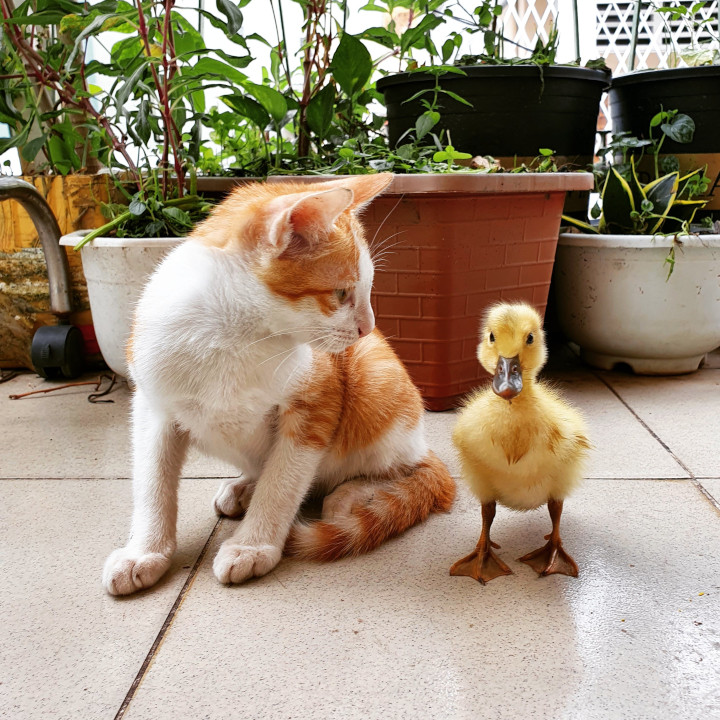
I will use this wonderful cat and duckling picture.
Step 1: Get pixel colour
Get the current pixel colour.
fragColour = texture(textureUnit, texCoord);
Step 2: Invert
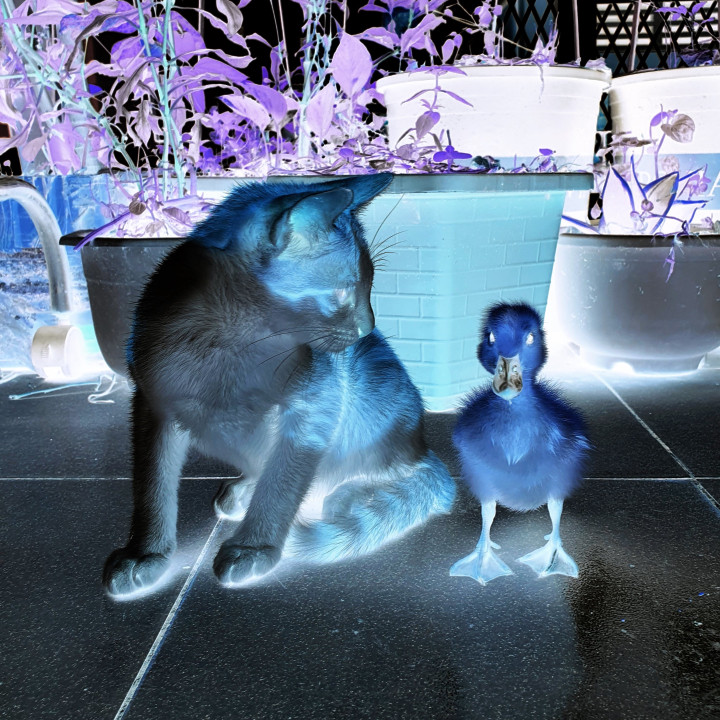
The colours channels are in the 0 to 1 range. So all we need to do is subtract the RGB values from 1 to invert the pixel colour.
fragColour.rgb = 1.0f - fragColour.rgb;
Pretty easy right. Here is the result.
But let’s take it a step further and allow us to pick which colour channels to invert.
Step 3: Channel switch
Create a uniform called channelSwitch. This uniform will control which colour channels to use for the invert effect.
uniform vec3 channelSwitch = vec3(1.0f);
Change this.
fragColour.rgb = 1.0f - fragColour.rgb;
To this.
fragColour.rgb = channelSwitch * 1.0f - fragColour.rgb;
The idea of the channelSwitch uniform is to set the values in the vec3 to either 0 or 1.
- If the value of the red channel is 1, then it will get multiplied against 1, which means the red channel will get inverted.
- If the value of the red channel is 0, then it will get multiplied against 1, which means the red channel will not get inverted.
Now you will be able to pick which colour channels to use.
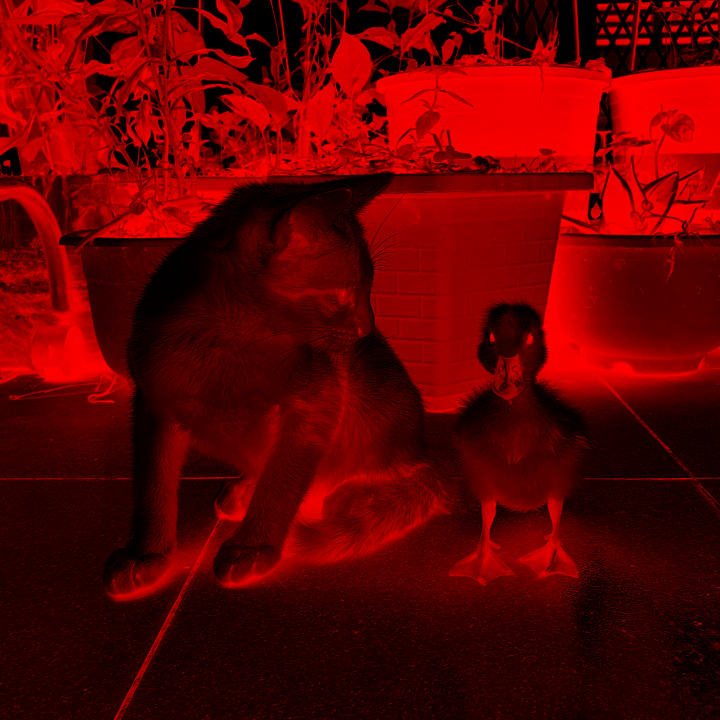
To invert the red channel only, use the uniform like this.
shader->Uniform3f("channelSwitch", 1.0f, 0.0f, 0.0f);
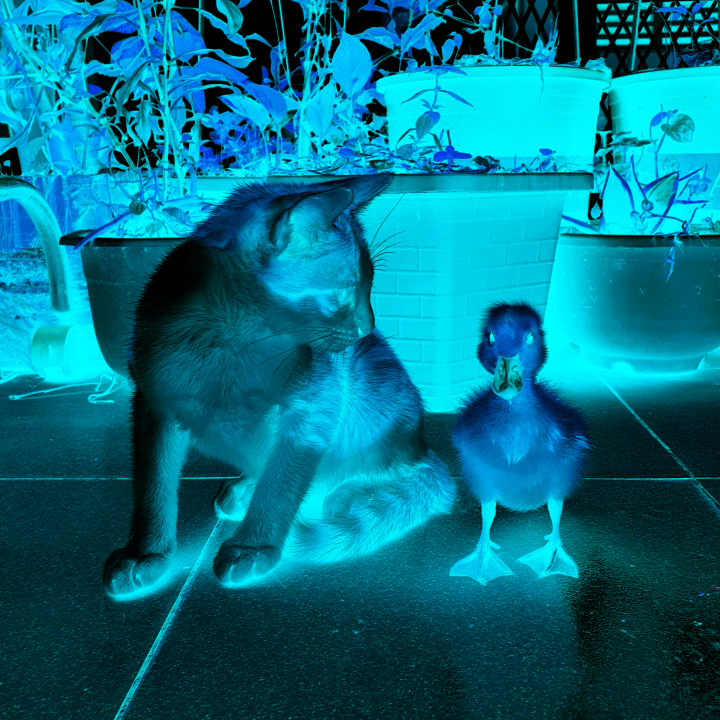
To invert the green and blue channel only, use the uniform like so.
shader->Uniform3f("channelSwitch", 0.0f, 1.0f, 1.0f);
Thank you for reading this tutorial, I hope you found it useful!
 Agate DRAGON Games