
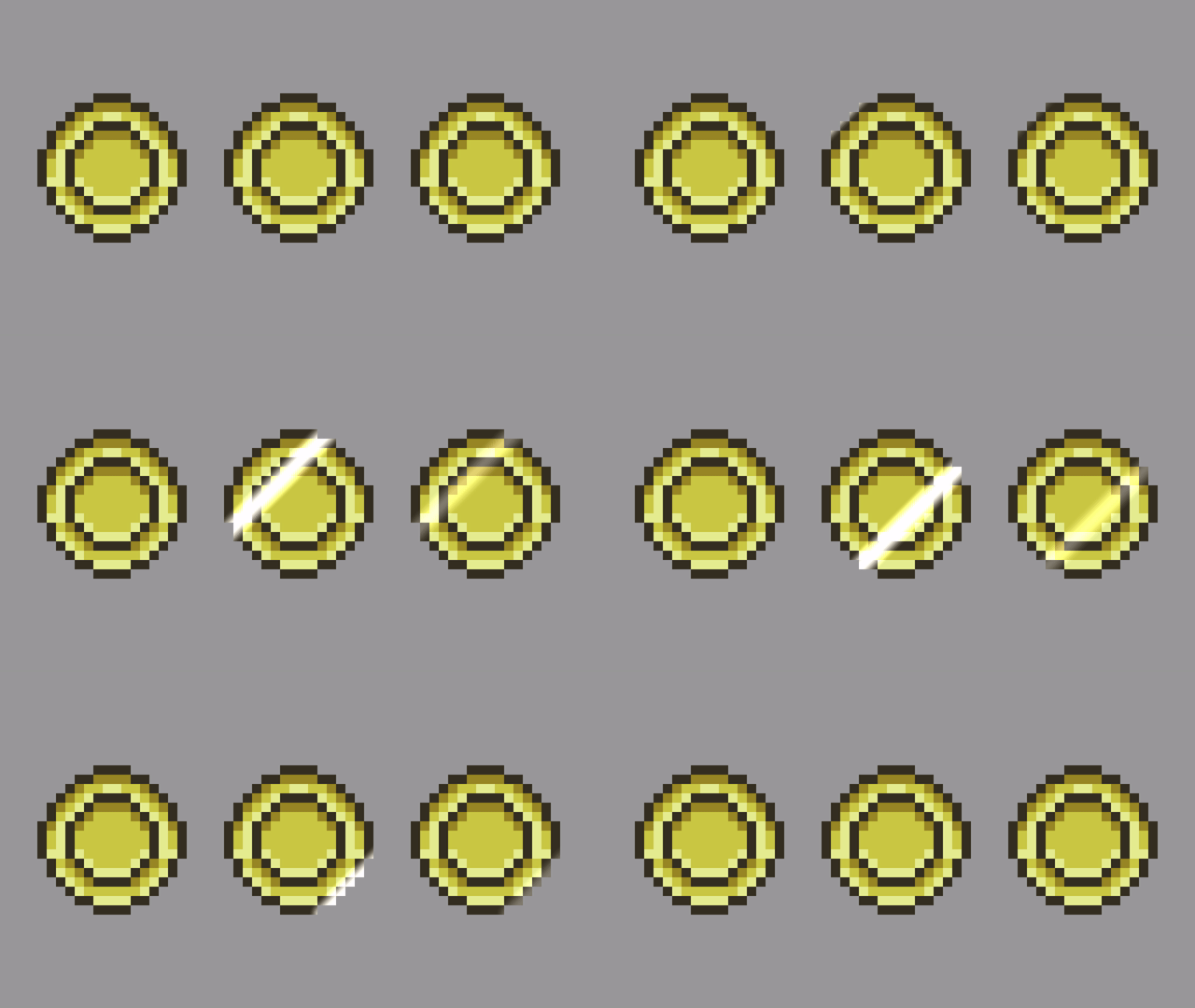
This tutorial will show you how to create a shining coin effect using a line segment SDF in a GLSL shader. SDF stands for signed distance function.
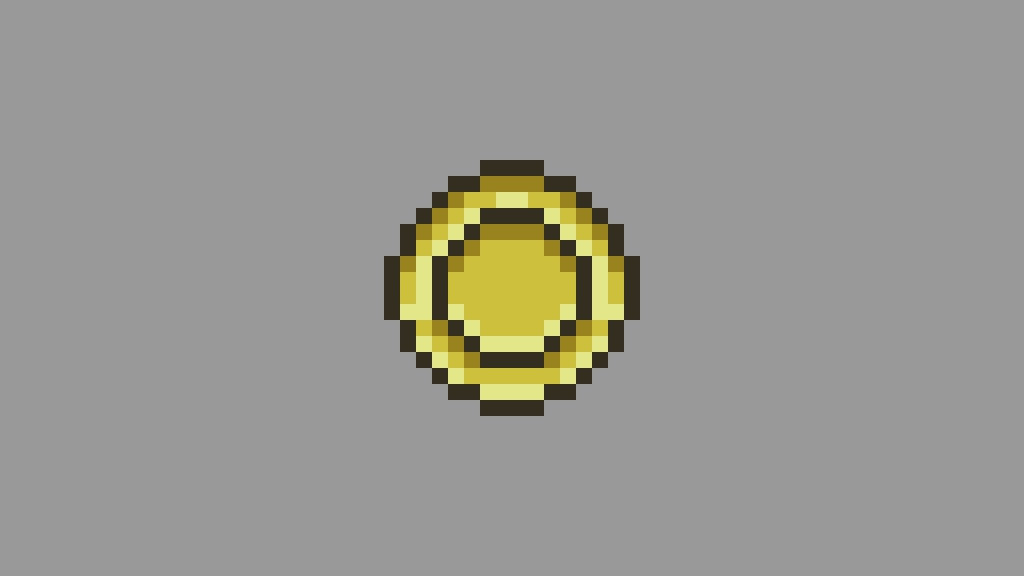
I will use the following gold coin sprite I created in Aseprite.
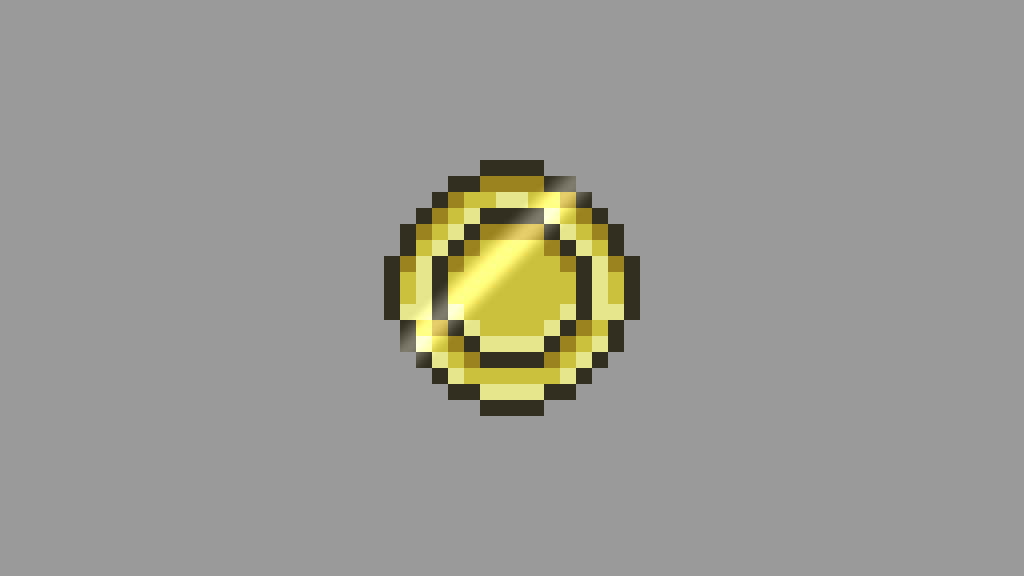
Here is what the finished effect looks like as an image.

Step 1: Get pixel colour
Get the current pixel colour.
fragColour = texture(textureUnit, texCoord);
Step 2: Progress
Pass in a progress uniform in the range of 0 to 1. The effect starts at 0, and ends at 1.
uniform float progress = 0.0f;
For testing I recommend you calculate the progress uniform using the fractional function and the current time in seconds. This will create a decimal value which loops in the range of 0 to 1. Since the fract function returns the decimal part of a number, and discards the integer part.
const float progress = math::Fract(timeSeconds);
shader->Uniform1f("progress", progress);
Step 3: Calculate position
Calculate the position of the shining shape to determine where the animation starts and ends.
First create a copy of the texture coordinates. Then mix -1 and 1, using the progress uniform. Then Subtract the mixed value from the current position.
- When progress is 0, the start offset is -1.
- When progress is 1, the start offset is 1.
vec2 pos = texCoord;
pos.x -= mix(-1.0f, 1.0f, progress);
Step 4: Create line segment
Create a smooth line segment which will be used for the shining effect.
This function returns the SDF line segment distance. The distance is just a greyscale value.
float Segment(in vec2 p, in vec2 a, in vec2 b)
{
    vec2 pa = p - a, ba = b - a;
    float h = clamp( dot(pa, ba) / dot(ba, ba), 0.0f, 1.0f );
    return length( pa - ba * h );
}
Get the distance to a line segment using the Segment signed distance function. The 2nd and 3rd arguments of the Segment function represent the 2 points of the line segment. I chose to use the bottom left and top right corners of the texture.
float s = Segment(pos, vec2(0.0f, 1.0f), vec2(1.0f, 0.0f));
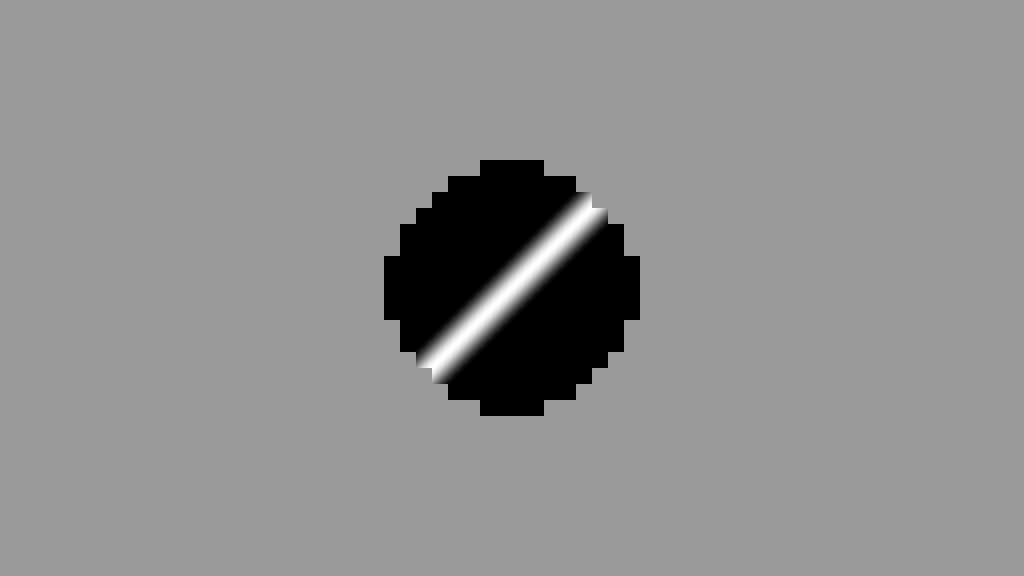
Smooth the line segment distance and invert it. This will make the centre white, the edges grey and the outside of the line segment will be black. Feel free to play with the smoothstep value in order to change the size and smoothness of the line segment.
s = 1.0f - smoothstep(0.0f, 0.1f, s);
Here is what the line segment distance looks like without the smoothing. The progress is set to 0.5, and the brightness is set to 1.
float s = Segment(pos, vec2(0.0f, 1.0f), vec2(1.0f, 0.0f));
fragColour.rgb = vec3(s);

Now with the smoothing, but not the invert.
float s = Segment(pos, vec2(0.0f, 1.0f), vec2(1.0f, 0.0f));
s = smoothstep(0.0f, 0.1f, s);
fragColour.rgb = vec3(s);

Smoothing and invert.
float s = Segment(pos, vec2(0.0f, 1.0f), vec2(1.0f, 0.0f));
s = 1.0f - smoothstep(0.0f, 0.1f, s);
fragColour.rgb = vec3(s);
Step 5: Brightness
Pass in a uniform for the brightness, if you want to control the brightness of the effect. The default is 1.
uniform float brightness = 1.0f;
Step 6: Add line distance
The line distance is scaled by the brightness uniform, to control how bright the line appears. Then the value is added to the current pixel colour. Adding will brighten up the sprite in the areas where the line distance is grey or white. Whilst black won’t do anything, since it has a value of 0.
fragColour.rgb += s * brightness;
Final result
See the strong and subtle version of the effect below. The middle coin has 100% brightness. The right coin has 30% brightness.

Conclusion
Congratulations you have now created a shining effect on a sprite. I recommend playing around with the brightness and the smoothing value. You could also add more shapes, or use another shape instead of the line segment, or you could change the direction of the effect. Have fun experimenting.
Thank you for reading this tutorial, I hope you found it useful!
 Agate DRAGON Games