
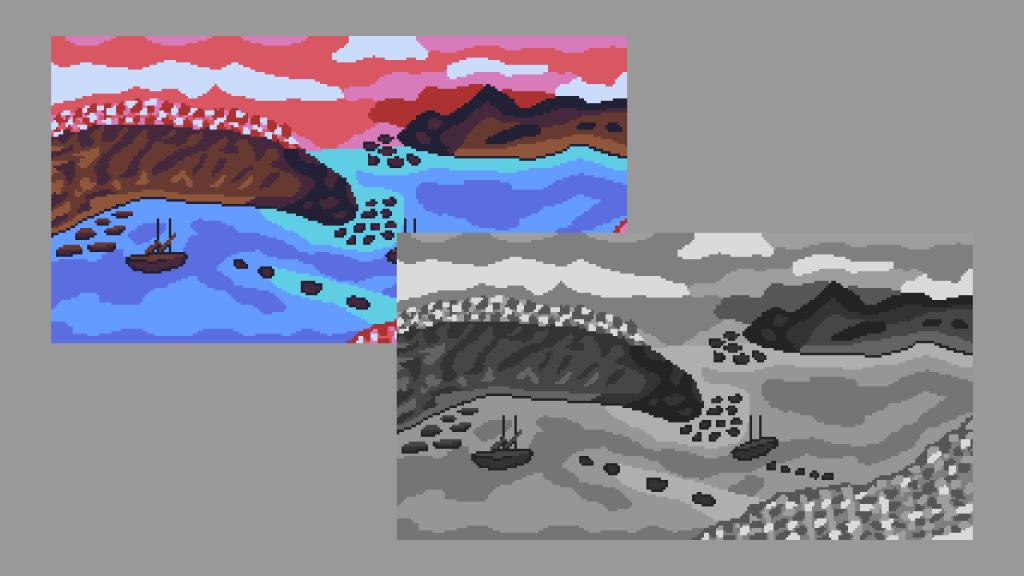
This tutorial shows you how to convert the RGB channels of a sprite to greyscale using weights in a shader. The tutorial is written in the GLSL programming language.
Original sprite

Greyscale sprite

GLSL shader code
#version 330 core

uniform sampler2D textureUnit;

// Range from 0.0f to 1.0f
uniform float intensity = 1.0f;

in vec2 texCoord;

out vec4 fragColour;

const vec3 GREY_WEIGHTS = vec3(0.299f, 0.587f, 0.114f);

void main()
{
	vec4 pixel = texture(textureUnit, texCoord);

	// Convert pixel colour to greyscale
	vec3 greyResult = vec3(dot(pixel.rgb, GREY_WEIGHTS));

	fragColour.rgb = mix(pixel.rgb, greyResult, intensity);
	fragColour.a = pixel.a;
}
The greyscale shader has a uniform called intensity which can be used to control the intensity of the effect.
uniform float intensity = 1.0f;- 1 is full greyscale.
- 0.5 is half original and half greyscale.
- 0 is original sprite only.
You could change the intensity value to make a sprite turn to stone, or to transition from full colour to greyscale over time.
These weights are used to convert the RGB channels of the current pixel to greyscale.
const vec3 GREY_WEIGHTS = vec3(0.299f, 0.587f, 0.114f);First we get the current pixel colour.
vec4 pixel = texture(textureUnit, texCoord);Then we convert the current pixel colour to greyscale using the weights and the dot function. This sets all the RGB values in greyResult to the dot product.
vec3 greyResult = vec3(dot(pixel.rgb, GREY_WEIGHTS));This is what the dot function is doing (remember that multiplication takes precedence over addition).
float greyValue = pixel.r * 0.299f + pixel.g * 0.587f + pixel.b * 0.114f;Lastly we will mix the original pixel colour with the greyscale colour using the intensity value. We also need to set the fragment alpha value to the pixel alpha value, so that the transparency works correctly.
fragColour.rgb = mix(pixel.rgb, greyResult, intensity);
fragColour.a = pixel.a;
Thank you for reading this tutorial, I hope you found it useful!
 Agate DRAGON Games