
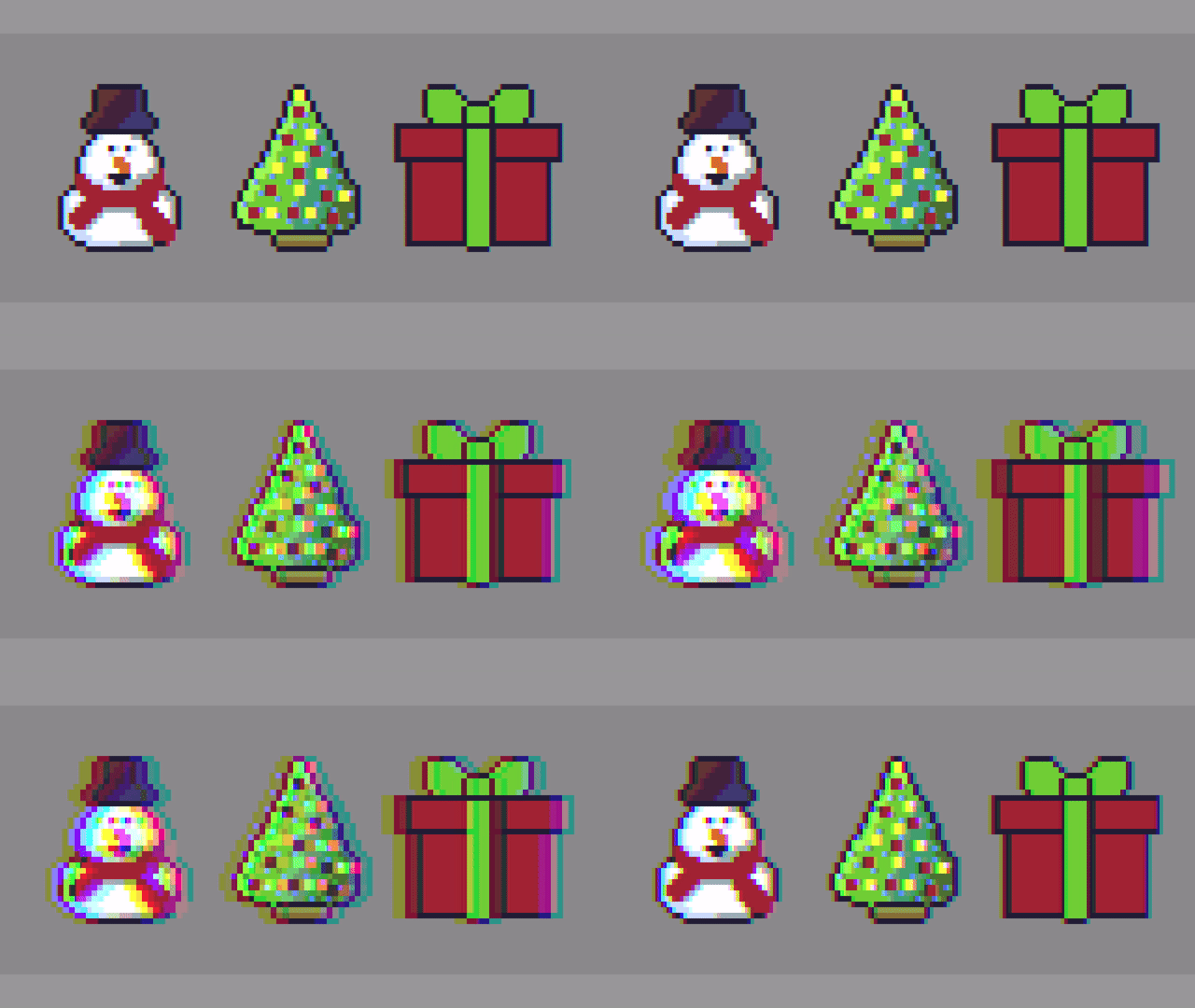
Hello, this tutorial will show you how to create a simple RGB Split shader effect. The effect is commonly used in image editing programs like Adobe Photoshop, video content and video games. It is also known as chromatic aberration.
Chromatic aberration – Wikipedia
Here is what the original image looks like without the effect applied:

Varying the offset which effects the red and blue colour channels.
GLSL shader code
#version 330 core

uniform float offset = 0.01f;

// Texture Unit
uniform sampler2D textureUnit;

// Texture coordinate
in vec2 texCoord;

// Final colour
out vec4 fragColour;

void main()
{
        // Get the current texture value
	fragColour = texture(textureUnit, texCoord);

        // Offset the texture coordinates to the left, and get the red value
	vec2 redCoord = texCoord;
	redCoord.x -= offset;
	float red = texture(textureUnit, redCoord).r;

        // Offset the texture coordinates to the right, and get the blue value
	vec2 blueCoord = texCoord;
	blueCoord.x += offset;
	float blue = texture(textureUnit, blueCoord).b;

        // Set the current red and blue fragment colour channels to the red and blue values from above
	fragColour.r = red;
	fragColour.b = blue;
}
This shader lets you pass in a uniform called offset. The larger the offset value, the larger the separation between the colour channels.
uniform float offset = 0.01f;So first off we will get a copy of the current texture coordinates. Then offset the x value to the left. We will then get the red value from the texture colour. This will be used later.
vec2 redCoord = texCoord;
redCoord.x -= offset;
float red = texture(textureUnit, redCoord).r;
After this we do the same thing to get the blue value, except this time we offset to the right.
vec2 blueCoord = texCoord;
blueCoord.x += offset;
float blue = texture(textureUnit, blueCoord).b;
We then set the red and blue values of the current fragment to the offset red and blue values we obtained earlier. And that’s it, we are done!
fragColour.r = red;
fragColour.b = blue;
As a bonus, here is how to animate the offset uniform when setting it in the C++ code. This was how the value was animated for the GIF above.
// Plug the current time in seconds into the sine function.
// This returns a value in the -1 to 1 range.
float s = std::sin(timeSeconds);

// Convert the value to the 0 to 1 range.
s = s * 0.5f + 0.5f;

// Multiply by the maximum offset value we want.
// This means our value will be in the 0 to max offset range.
s *= 0.025f;

// Finally set the offset uniform with our value.
shader->Uniform1f("offset", s);
Conclusion
This tutorial shows you how simple it is to create a RGB split shader. However this shader only changes the red and blue channels, and only uses the horizontal axis. This might be all you want, but there is so much more you could do with it.
Why not try offset the green colour channel? Or apply the offset vertically? Or why not offset all 3 colour channels at the same time? You could also pass in more uniforms, and use an angle instead of sampling from the horizontal or vertical axis. Feel free to experiment, and have fun.
Thank you for reading this tutorial, I hope you found it useful!
 Agate DRAGON Games